
This guide preserves the complete installation workflow for pfSense Community Edition 2.6.0. It remains useful for labs, legacy-system recovery, reproducing an older environment, and documenting how this generation of pfSense was installed and configured.
pfSense CE 2.6.0 was released on February 14, 2022 and used FreeBSD 12.3-STABLE as its base. Netgate’s current version table marks this release as unsupported. The screenshots and instructions below should therefore be read as historical documentation, not as the recommended installation procedure for a new firewall in 2026.
For the current platform, start with our updated introduction to pfSense, which covers current CE/Plus differences, VLANs, VPNs, Multi-WAN, high availability, packages, and hardware.

Before installing pfSense CE 2.6.0
To reproduce this installation, use a physical system or virtual machine compatible with amd64/x86-64, dedicated storage, and at least one network interface. A conventional WAN/LAN firewall normally uses two physical or virtual NICs. VLAN-based lab designs can use fewer physical interfaces, but require a properly configured switch or virtual network.
Very low hardware figures commonly quoted in older tutorials should be treated as lab minimums rather than production sizing advice. Current pfSense documentation uses 1 GB RAM and 8 GB storage as generic technical minimums, and requirements increase quickly when VPNs, IDS/IPS, ntopng, or other packages are used.
Before you begin:
- back up anything on the destination disk because the installer can erase it completely;
- identify the WAN and LAN interfaces correctly;
- choose BIOS or UEFI based on the target hardware;
- for a VM, create clearly separated WAN and LAN network adapters;
- if this installation is only for legacy recovery, keep it on a controlled network until it can be upgraded or migrated.
Do not disable CPU C-states as a generic optimization. That recommendation appeared frequently in older virtualization tutorials, but it is not universally beneficial. Power-management tuning should be driven by measurements and a specific problem.
Historical pfSense CE 2.6.0 downloads
In 2022 Netgate offered two main amd64 installation images:
- DVD Image (ISO): suitable for optical media and especially convenient for virtual machines.
- USB Memstick Installer: designed to be written directly to a USB drive.
The next screenshots preserve the old download page as it looked during the 2.6.0 era. Netgate’s current installer workflow is different, so these screens are historical documentation.
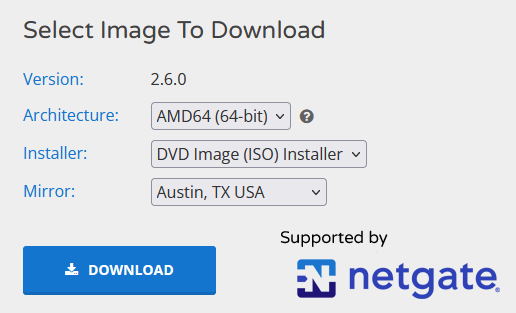
The compressed ISO image was:
pfSense-CE-2.6.0-RELEASE-amd64.iso.gzThe historical Netgate file server still responds for this image:
Download the historical pfSense CE 2.6.0 ISO from Netgate
Official SHA-256 of the compressed ISO:
941a68c7f20c4b635447cceda429a027f816bdb78d54b8252bb87abf1fc22ee3The USB Memstick option was:

pfSense-CE-memstick-2.6.0-RELEASE-amd64.img.gzDownload the historical pfSense CE 2.6.0 USB image from Netgate
Official SHA-256 of the compressed Memstick image:
ba3256631762f5cabc84b74853e28320c9d7c24d986de6f66e932d986bafb866These checksums are for the compressed .gz files before decompression.
Prepare a USB installer
The original article used Win32 Disk Imager with the decompressed .img file. The principle remains correct: a disk image must be written to the USB device rather than copied onto its filesystem as an ordinary file.

If reproducing this setup today, a current image-writing utility such as balenaEtcher can also write the image. Always verify the target device because the operation overwrites the selected drive.
Install pfSense CE 2.6.0
1. Boot the installation media
Attach the USB drive, DVD, or virtual ISO to the target system and boot from it.
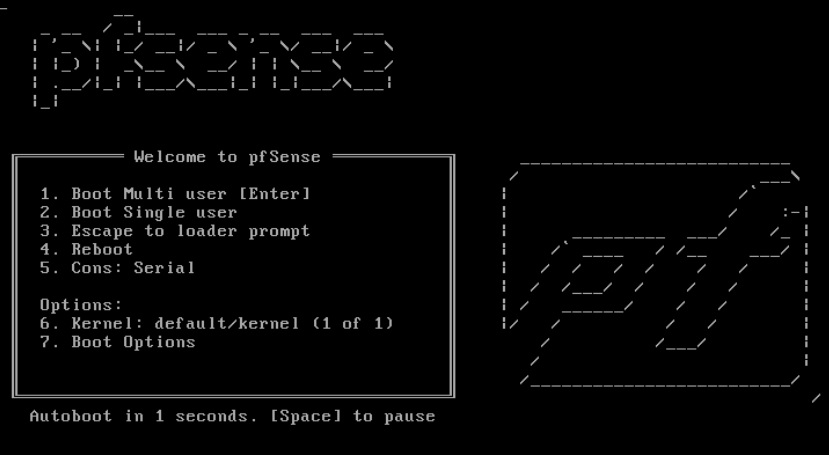
After a short delay, the legal information appears.
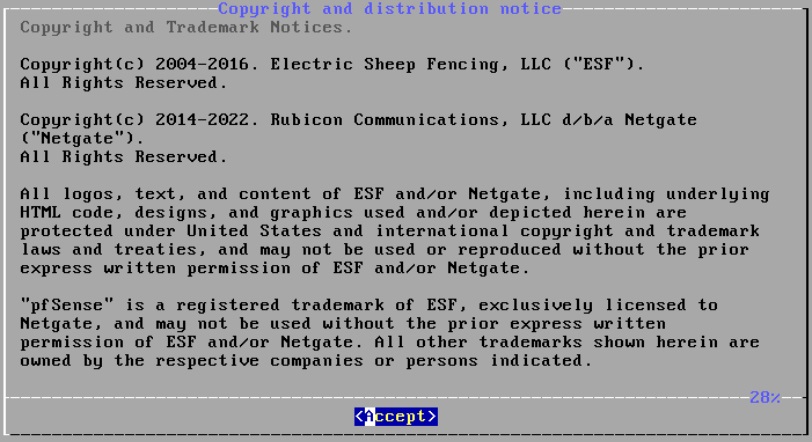
2. Enter the installer
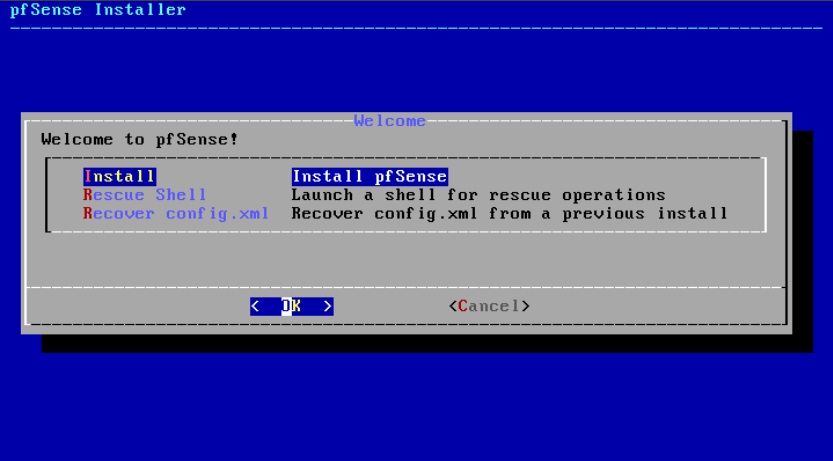
3. Keyboard map
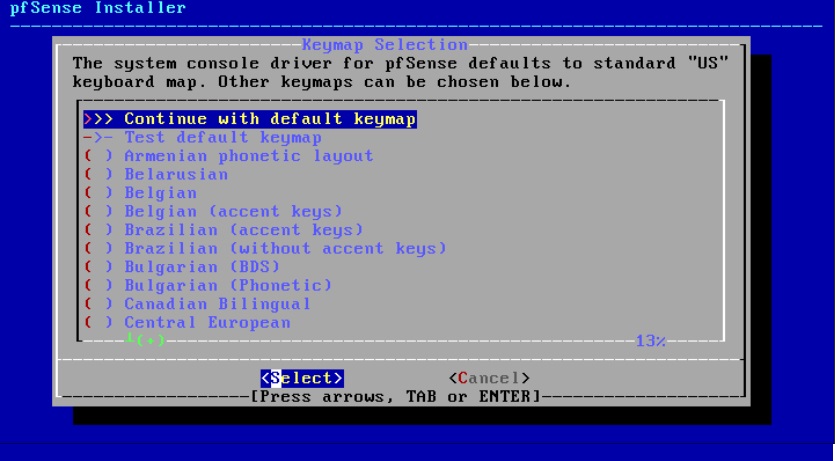
4. Partitioning
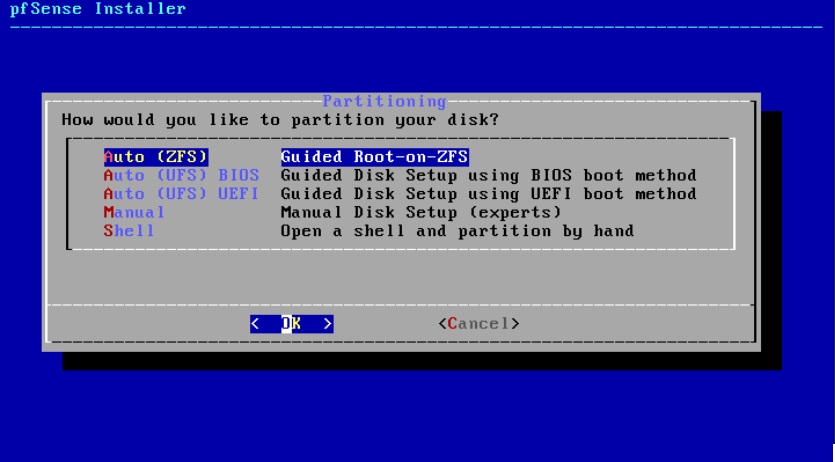
The original walkthrough used Auto (ZFS). ZFS provides checksums, snapshots, and other useful features, but the right storage layout depends on the hardware and purpose of the firewall.
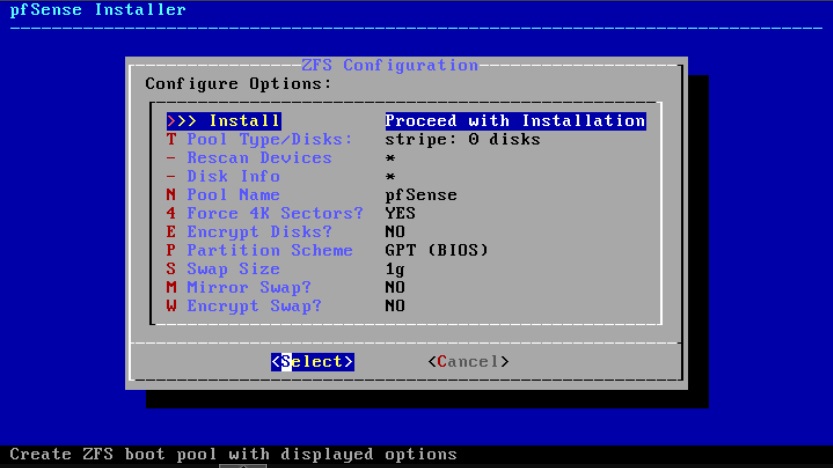
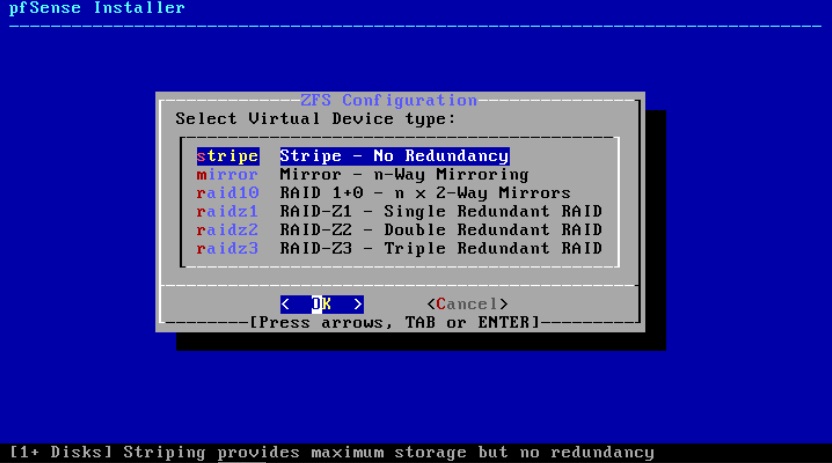
5. Select the destination disk
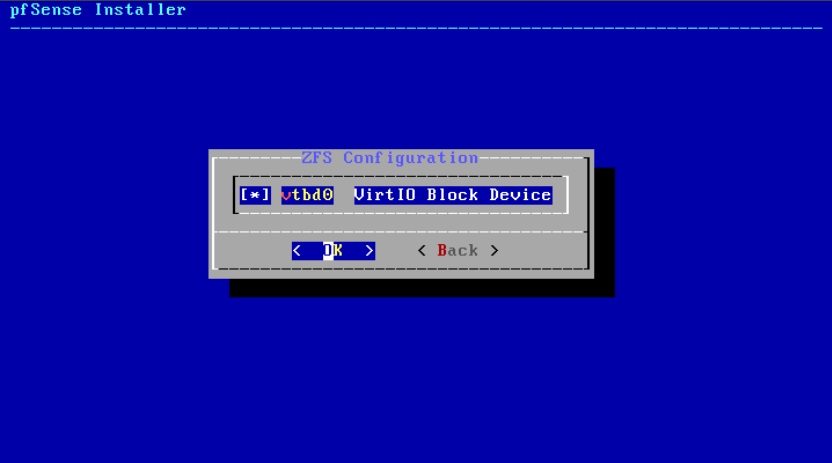
Mark the correct device. Verify model and size before proceeding: the selected disk will be destroyed.
6. Confirm disk erasure
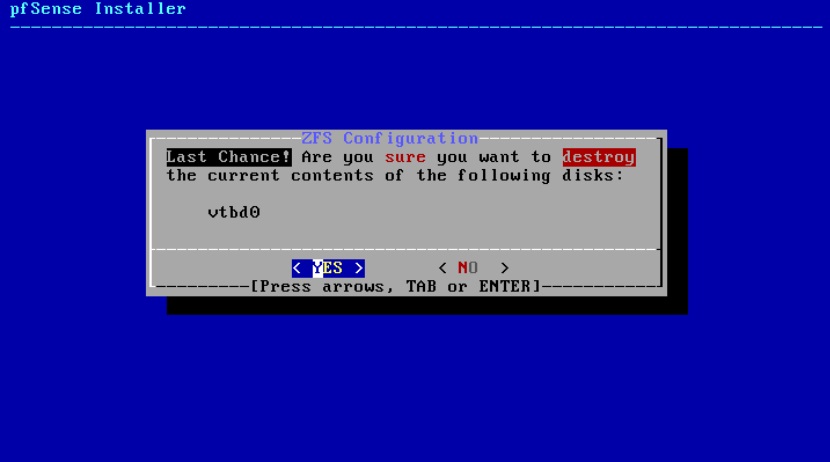
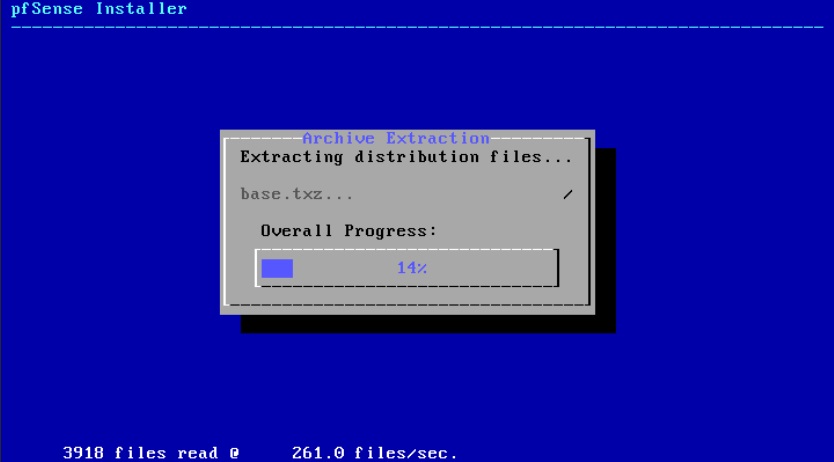
7. Copy and extract the system
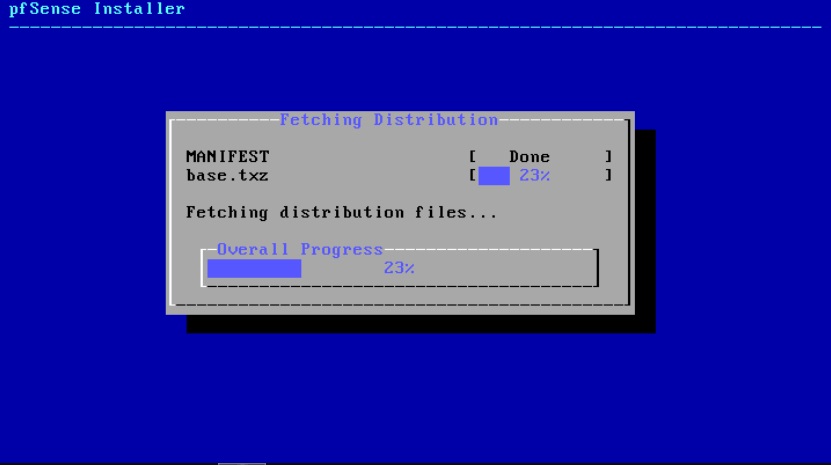
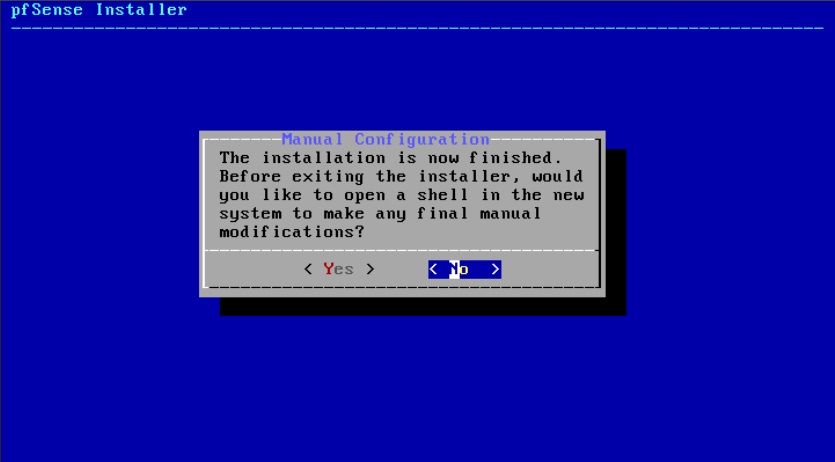
8. Optional manual changes
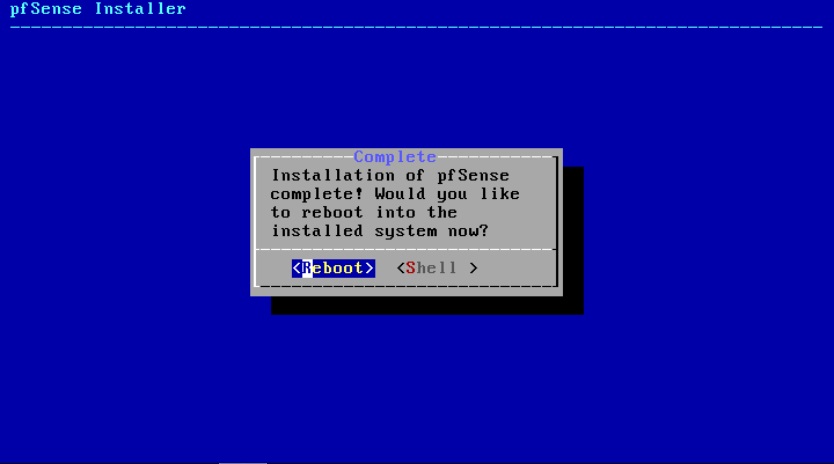
9. Finish and reboot
First boot: assign interfaces
10. VLAN prompt
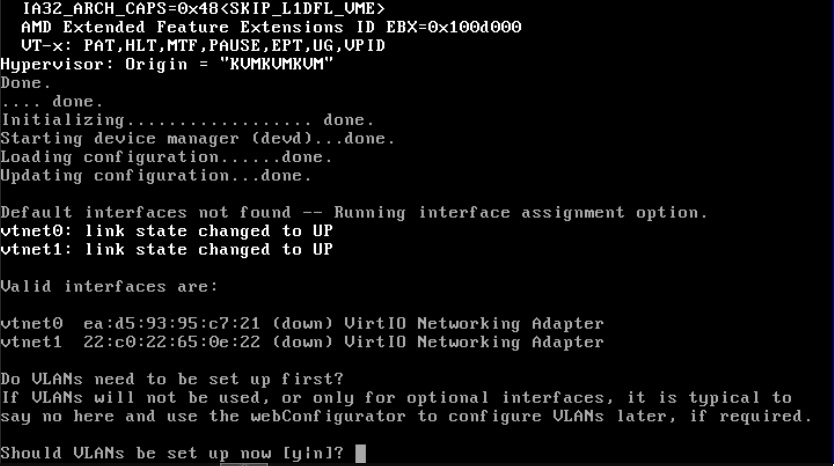
The original lab answered N because WAN and LAN used separate interfaces. This is not a recommendation to avoid VLANs; trunk-based designs can define them here or later in WebConfigurator.
11. Assign WAN

This VM exposed vtnet0 and vtnet1. Physical hardware may show names such as igb0, em0, or ix0, depending on the NIC driver.
Do not assume the first detected NIC is always WAN. Confirm which interface maps to each physical or virtual network.
12. Assign LAN

13. Confirm WAN and LAN

Only confirm once the interfaces are attached to the intended networks. Reversing WAN and LAN can expose the management side to the wrong network.
Configure interface IP addresses from the console
14. Main console menu

Option 2) Set interface(s) IP address changes interface addressing.
15. Configure WAN IPv4
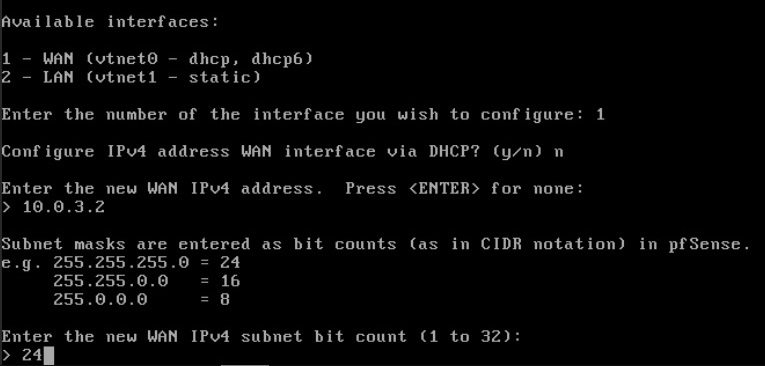
The lab used:
WAN: 10.0.3.2/24
Gateway: 10.0.3.1
These are example private addresses. Do not copy them into another network. A real WAN may use DHCP, PPPoE, or static addressing depending on the upstream network.
16. Configure the WAN gateway

17. IPv6 and HTTPS
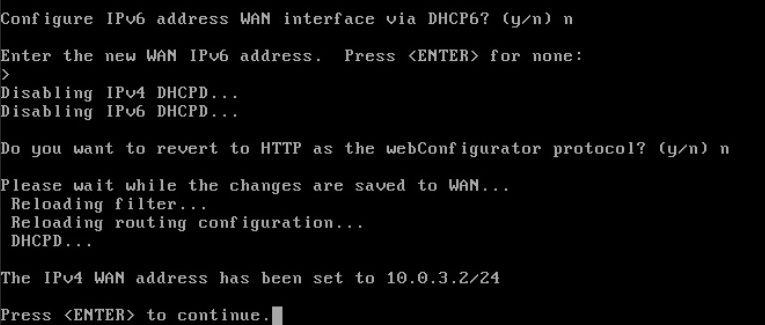
The lab disabled IPv6 because that environment did not use it. This is not general advice to disable IPv6. When an ISP provides IPv6, pfSense can route and firewall it normally.
Keep WebConfigurator on HTTPS; there is normally no reason to revert administration to clear-text HTTP.
18. Configure LAN
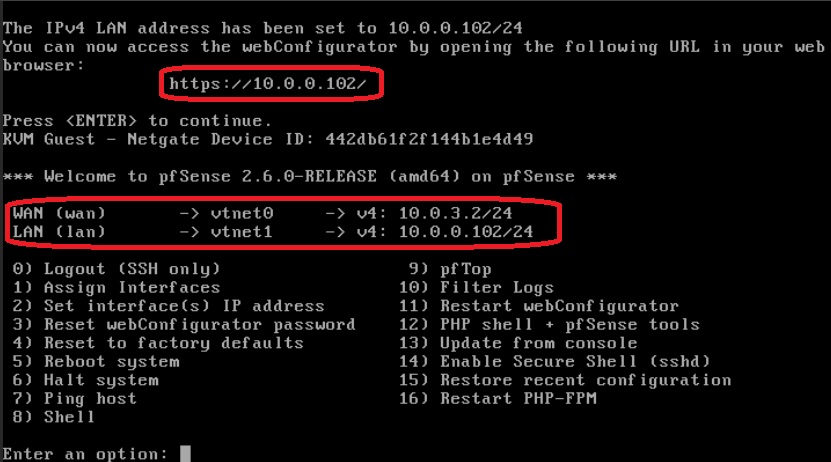
The historical installation used 10.0.0.102/24. A normal LAN can use any appropriately planned private subnet. The LAN gateway field is normally left blank because pfSense itself is the router for that network.
Access WebConfigurator
19. Open the LAN address

20. Self-signed certificate

Before adding an exception, verify that the address belongs to the firewall you just installed and that you are on the intended trusted network. Do not build the habit of bypassing TLS warnings without checking the destination.
21. First login
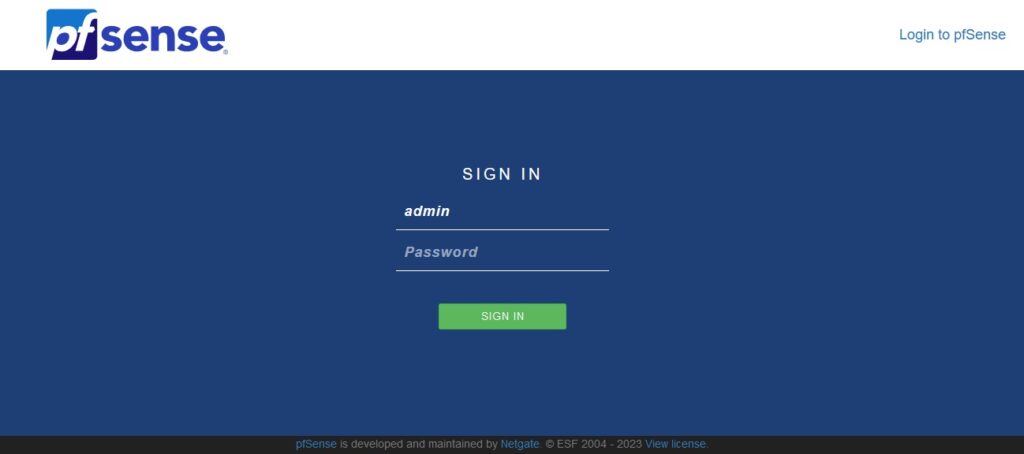
The default pfSense CE 2.6.0 credentials were:
User: admin
Password: pfsense
Change that password immediately during the initial setup.
WebConfigurator setup wizard
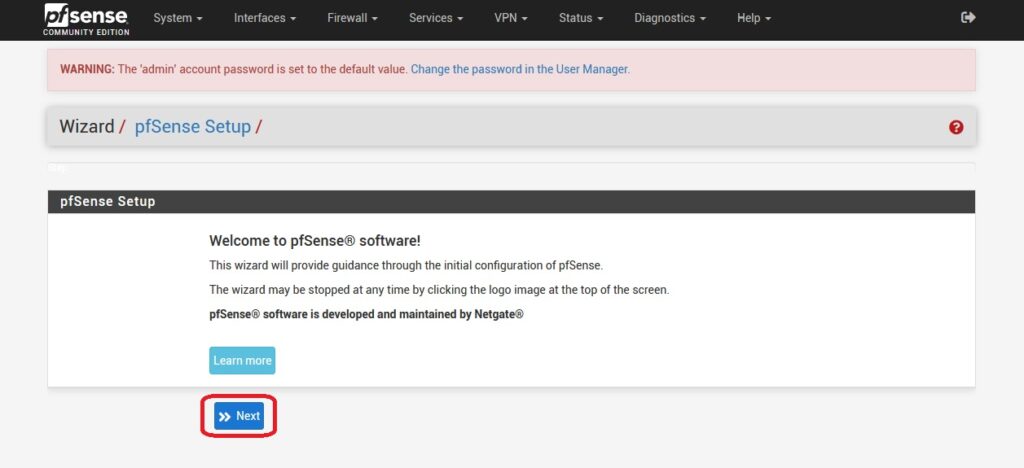
22. Start the wizard
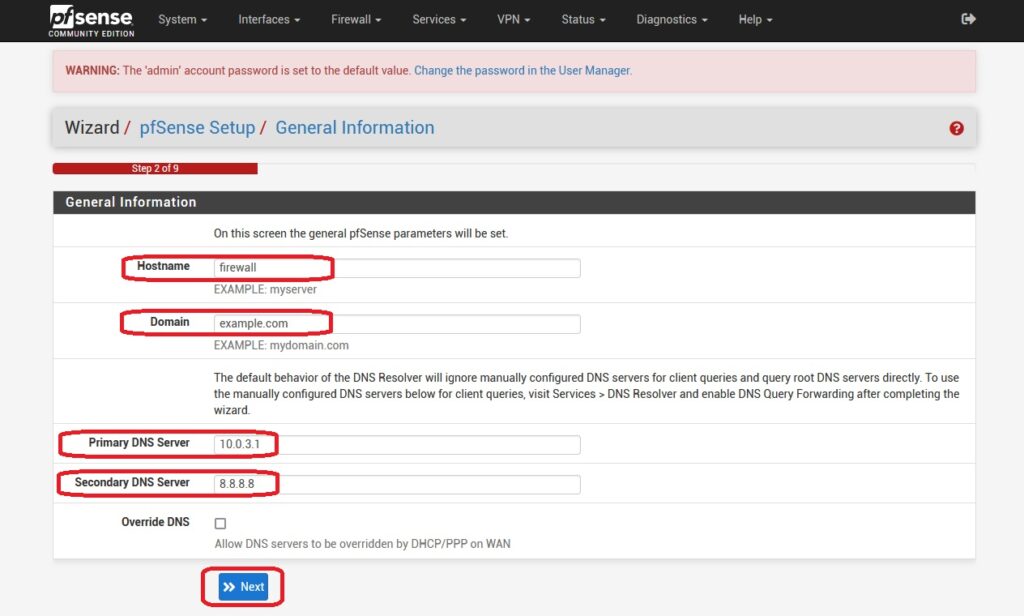
23. General information

24. Time zone and NTP
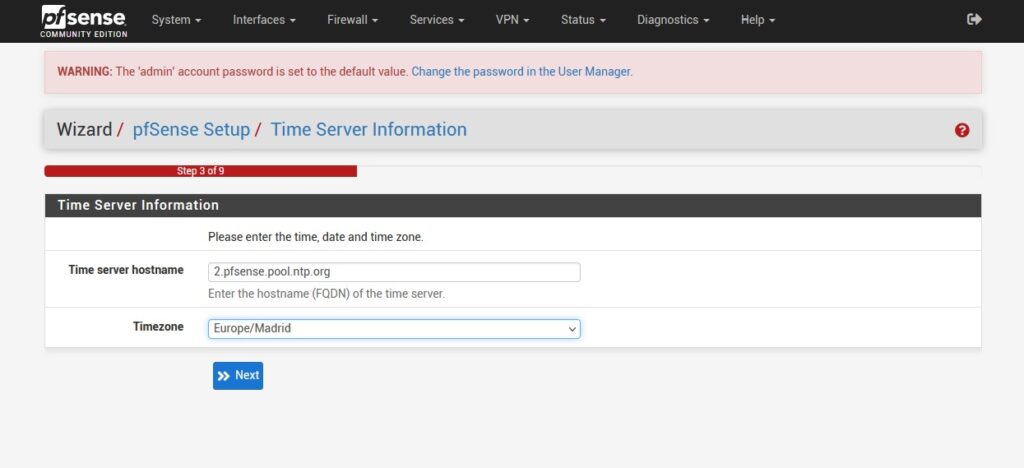
Select the actual time zone for the firewall. Accurate time is critical for logs, certificates, authentication, and incident analysis.
25. Review WAN
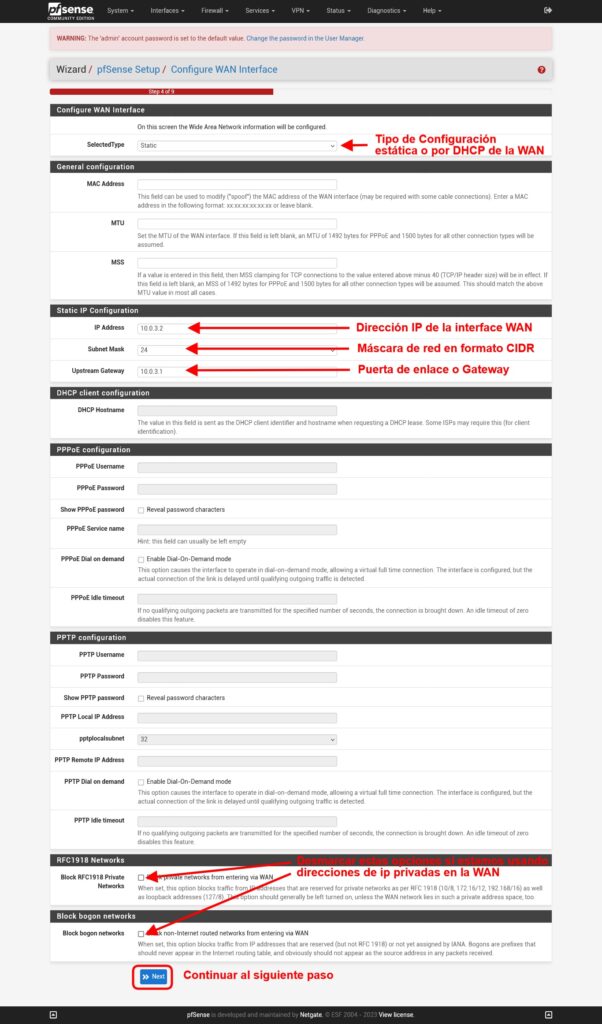
The option to block private networks on WAN is appropriate when WAN receives a public address, but it can break an intentional lab or double-NAT setup where the WAN itself uses RFC1918 addressing.
26. Review LAN
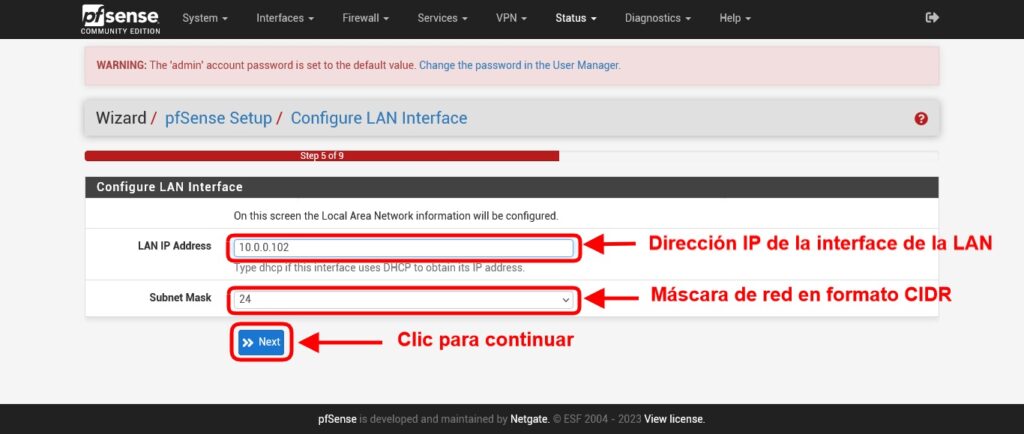
Changing the LAN network here may disconnect the browser session; reconnect using the new address if that happens.
27. Change the admin password
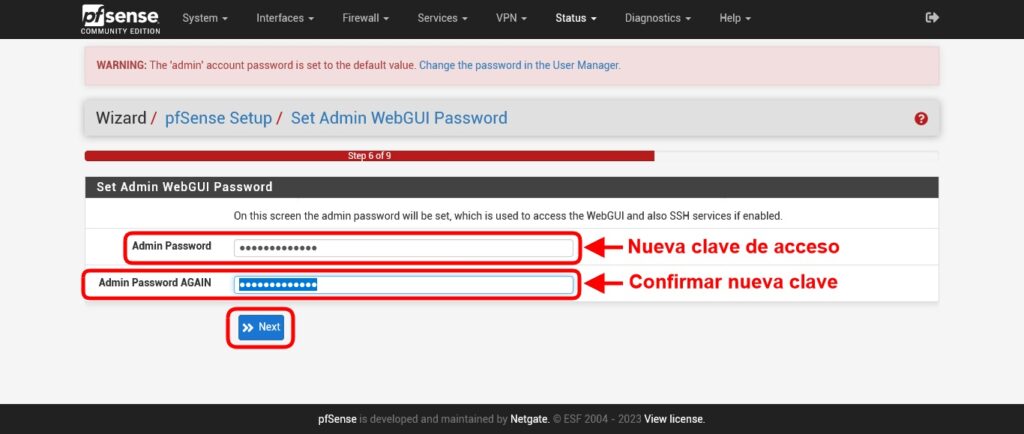
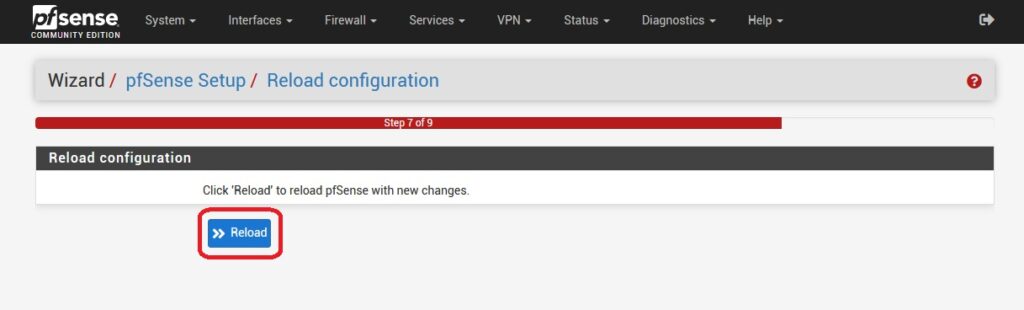
28. Reload and complete the wizard

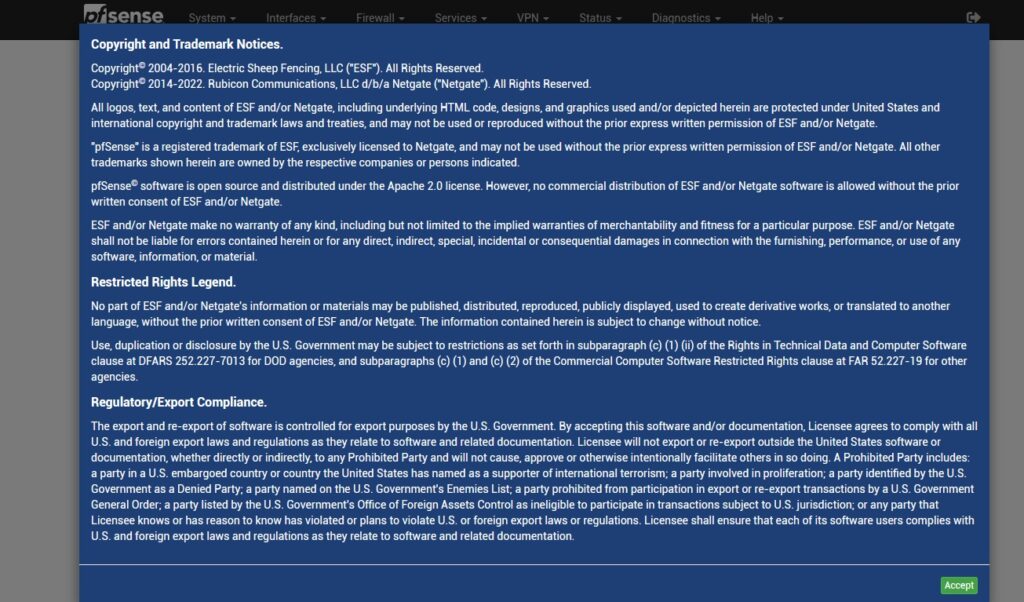
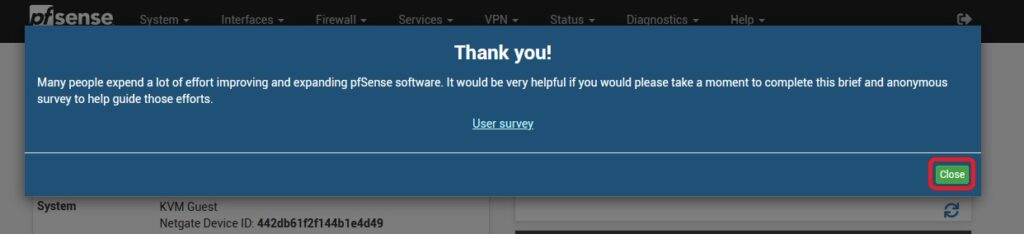
29. Legal notice and final screen
pfSense CE 2.6.0 dashboard

From this point, the firewall is ready for interface configuration, rules, NAT, DHCP, DNS, VPNs, logging, and packages.

What to do after a historical 2.6.0 installation
If you are reproducing this version for recovery or lab work:
- export and store
config.xmloutside the firewall; - make sure WebConfigurator and SSH are not unnecessarily exposed on WAN;
- replace the default credentials;
- document WAN, LAN, VLANs, and gateways;
- review firewall rules before connecting sensitive networks;
- avoid unnecessary packages;
- plan migration to a supported release if this is more than a temporary lab.
pfSense CE 2.6.0 should not be the destination for a new deployment
Netgate’s official version table marks pfSense CE 2.6.0 as unsupported. Later releases changed the FreeBSD base, PHP, OpenVPN, IPsec, DHCP, installation workflow, and many other components.
This guide is preserved because its 41 original screenshots accurately document the 2.6-era process. Replacing them with modern screenshots would make the article less accurate, not more.
A separate guide should be used for a current pfSense installation, while this page remains a historical reference.
Official sources
- Netgate — pfSense versions and FreeBSD base
- Netgate — pfSense CE 2.6.0 / Plus 22.01 changes
- Netgate — pfSense CE 2.6.0 release notes
- pfSense Redmine — official SHA-256 verification example for the 2.6.0 ISO
- Netgate — pfSense hardware guidance