This guide walks through a minimal Debian 12 “Bookworm” installation in text mode using the netinst image. The goal is a clean server base with no desktop environment, working networking, current APT repositories, and a system ready for console or SSH administration.
The original Universo Digital article was published on April 13, 2023, before Debian 12 became stable on June 10, 2023. The screenshots therefore come from the Bookworm installer during its pre-release period, although the overall installation flow remained essentially the same throughout Debian 12.
For background on the operating system itself, see our GNU/Linux introduction.
Debian 12 support status in 2026
Debian 12.0 was released on June 10, 2023. The final point release in the branch is Debian 12.15, published on July 11, 2026.
Regular Debian security support ended in July 2026 and responsibility moved to the Debian LTS team. Bookworm is scheduled to receive LTS security support until June 30, 2028 for amd64, i386, arm64, armhf, and ppc64el.
Debian 12 therefore remains a valid platform for existing servers that need to stay on Bookworm, but a new deployment without a specific dependency will generally be better served by Debian 13 “Trixie.” This article remains specifically about Debian 12.
Download Debian 12.15 netinst
The old 2023 link must not point at Debian’s current directory anymore because that directory now contains Debian 13. To reproduce a Bookworm installation, use Debian’s official archive.
Official amd64 image:
debian-12.15.0-amd64-netinst.iso
SHA-256:
cd4462c06aa8892e692c0c4b9c17802f38c8ab8690e85cbfb5ccaa5956e9af17Verify the checksum after downloading. On physical hardware, write the ISO to a USB drive using a proper image-writing tool. Our bootable USB tools guide compares several options, and we also maintain a dedicated balenaEtcher guide.
Hardware requirements
The Debian 12 amd64 installer can operate with very modest hardware. Debian’s Bookworm documentation states that a normal installation needs roughly 780 MB of RAM and 1.16 GB of disk space, while its recommended-minimum table for a no-desktop system lists 256 MB RAM minimum, 512 MB recommended, and 4 GB of disk.
Those figures are installation minimums, not realistic server sizing guidance. CPU, memory, storage, IOPS, and network capacity must be chosen for the actual workload.
For a small server, a more practical baseline might be one or two vCPUs, 1–2 GB RAM, and 20 GB or more of storage. Databases, mail systems, containers, and larger web services may require substantially more.
Netinst means networking matters
The netinst image contains enough software to install a base Debian system but is designed to retrieve additional packages from network repositories.
The original tutorial recommended disconnecting the network temporarily. That is not good general advice for a normal netinst installation. Keep networking available when possible, especially if you want to use a Debian mirror during installation, install OpenSSH through tasksel, and obtain current packages.
The original screenshots show a case where automatic configuration failed and IPv4 was configured manually. That remains useful for servers with static addressing.
1. Start the text-mode installer
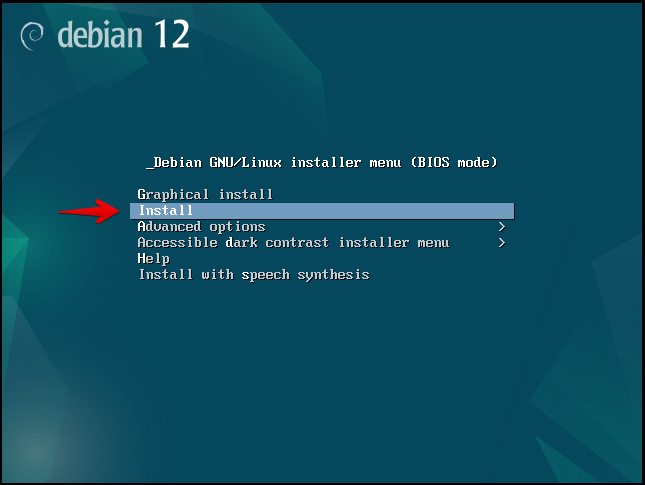
Graphical install uses the same installer with a graphical front end. For a server, the text installer is lightweight and makes it clear that no desktop environment is being installed.
2. Choose language, location, and keyboard
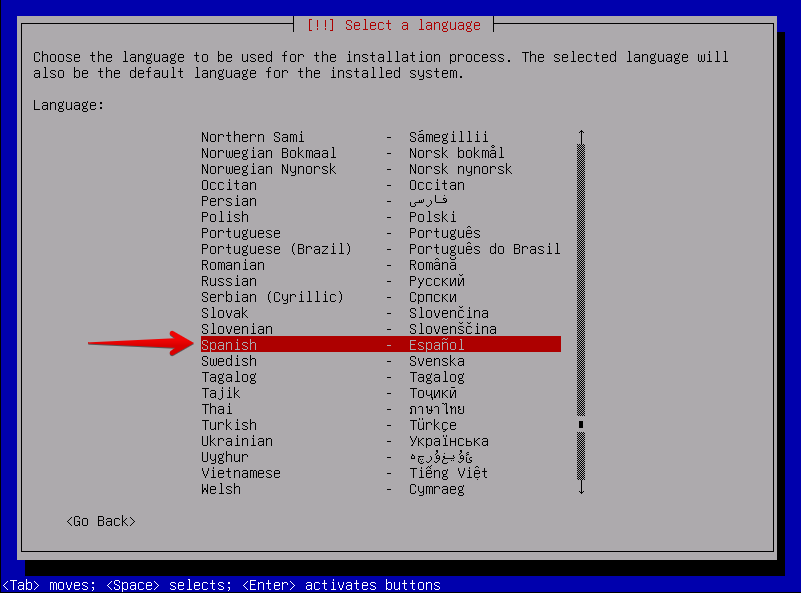
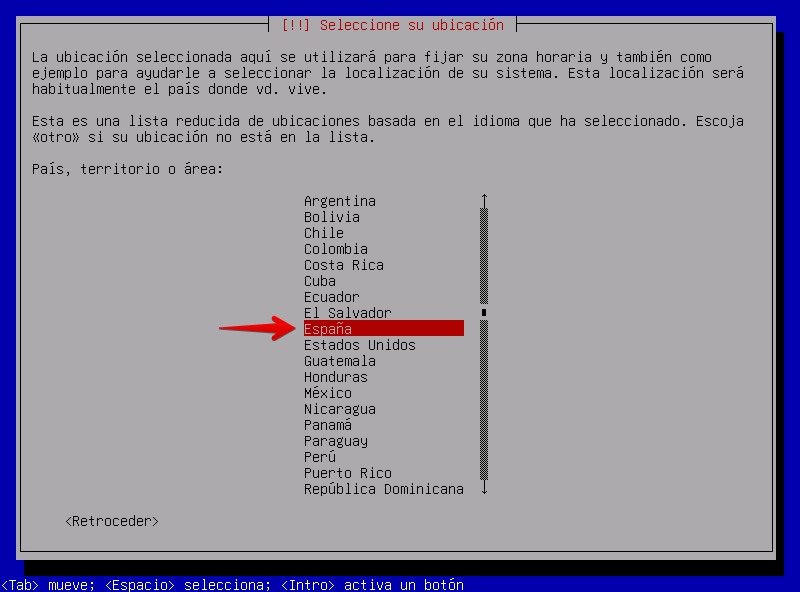
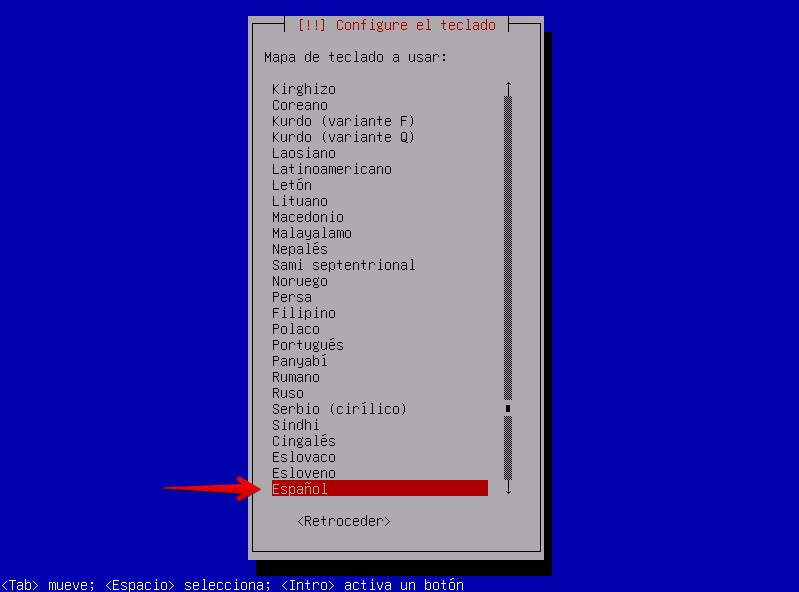
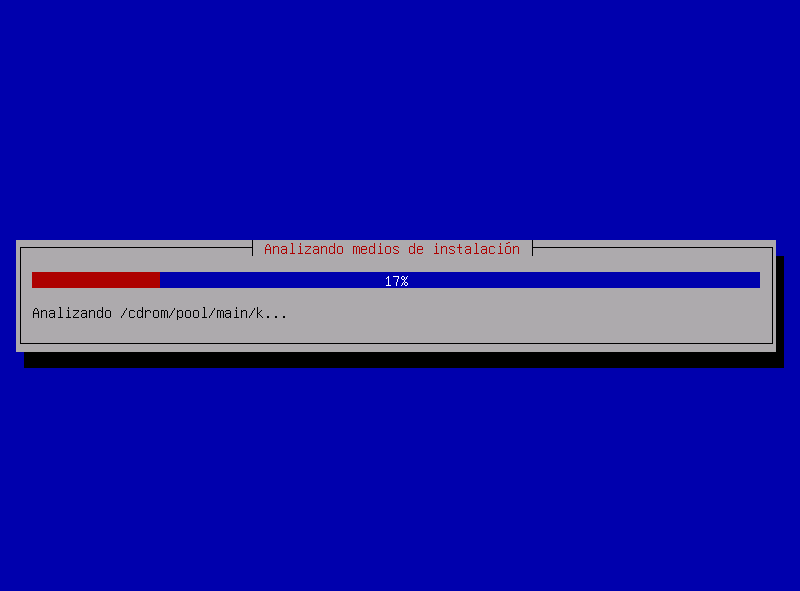
3. Configure networking
Debian normally attempts automatic IPv4 configuration through DHCP and also supports IPv6 through SLAAC/NDP and DHCPv6.
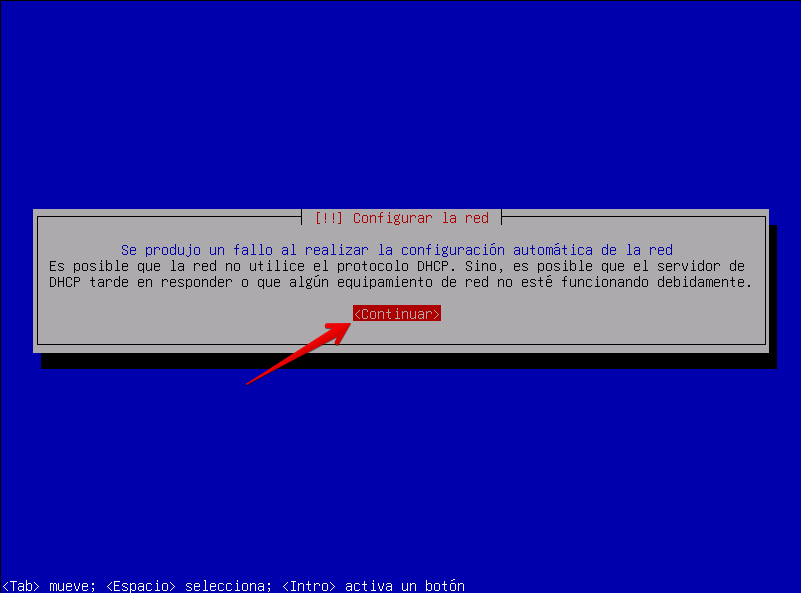
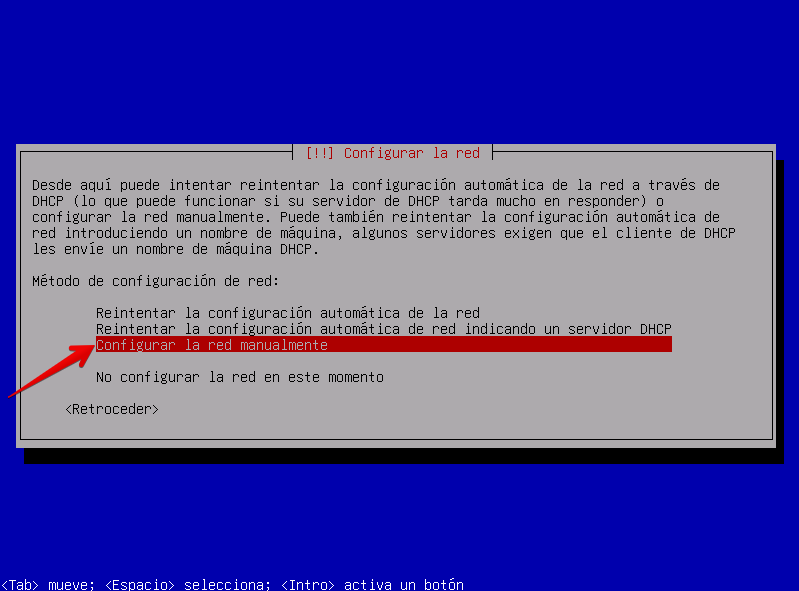
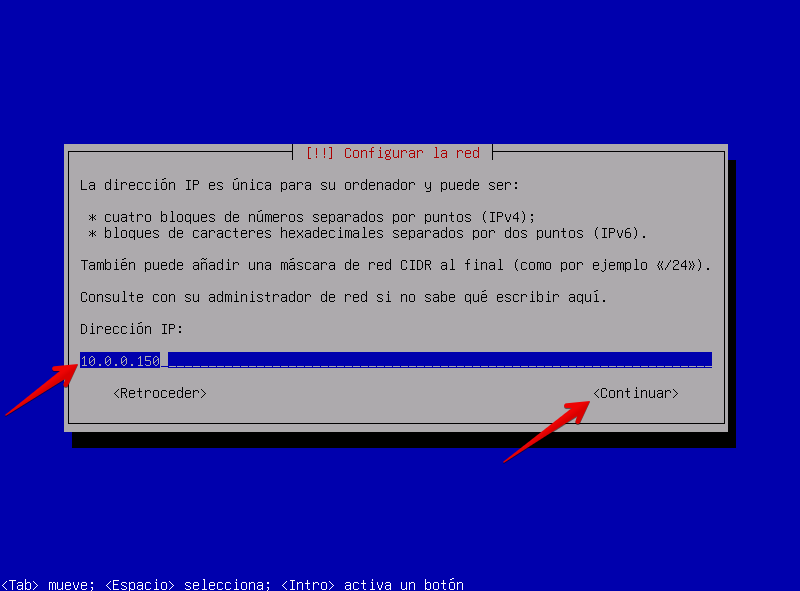
Use an address valid for your own network rather than copying the values shown in screenshots. A static configuration needs an address/prefix, gateway, and reachable DNS resolver.
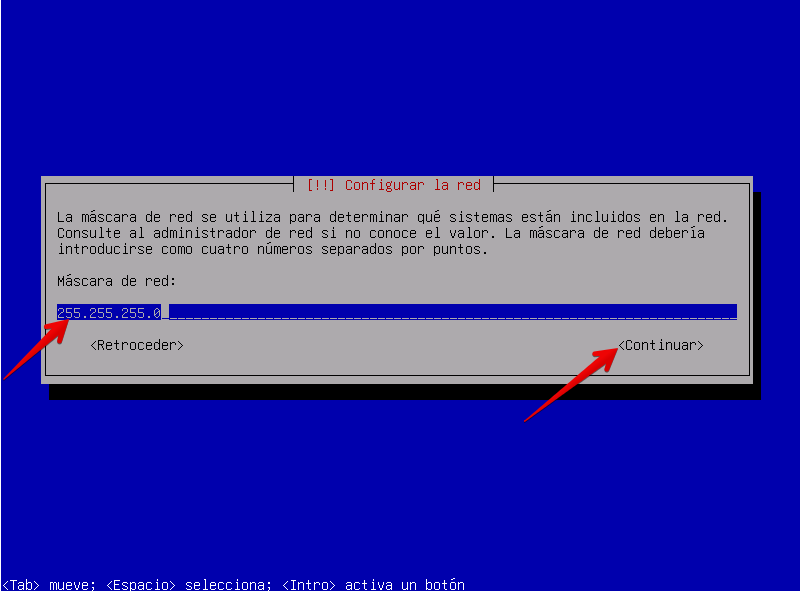
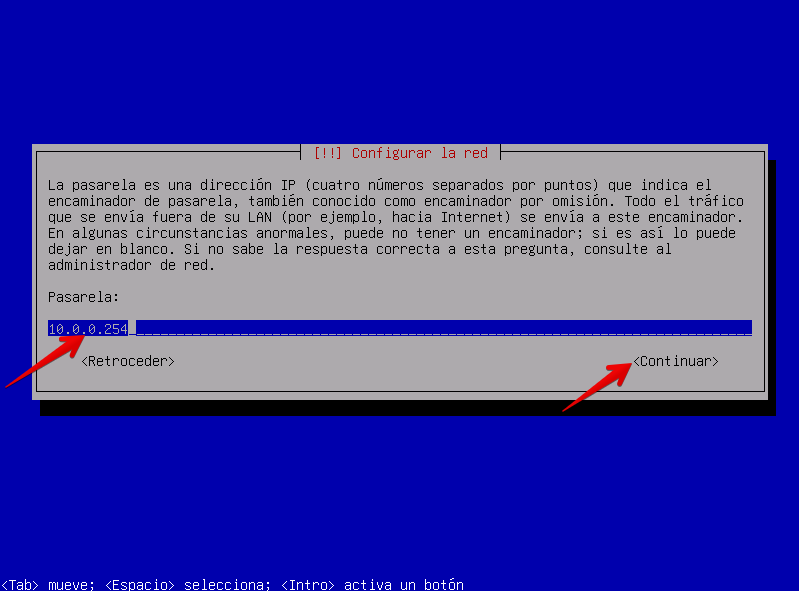
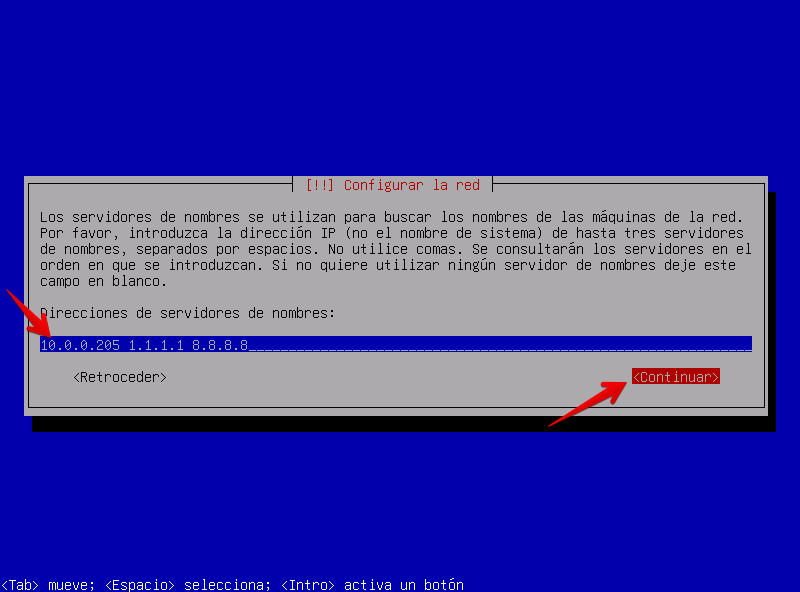
Public resolvers are not always the right choice. Servers integrated with Active Directory, LDAP, internal service discovery, or private DNS zones may require organizational DNS servers.
4. Hostname and domain
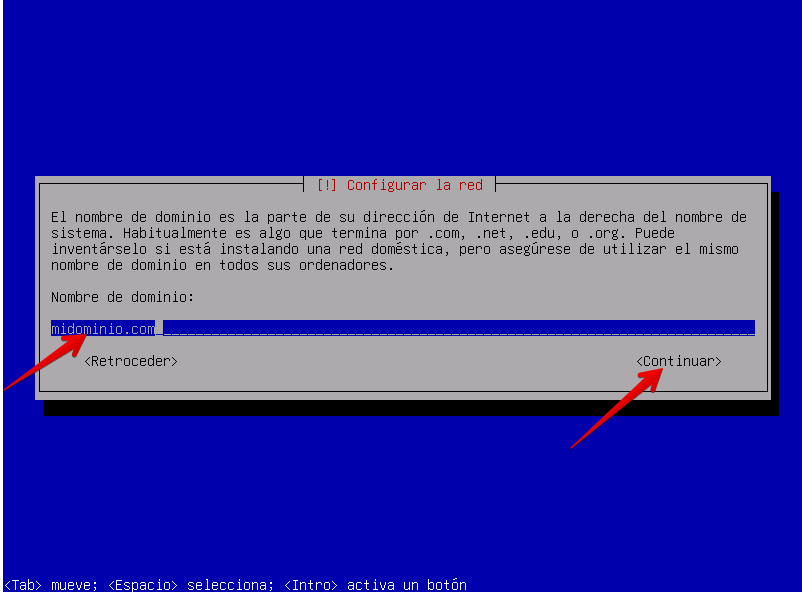
For servers, define a stable hostname from the beginning and ensure forward and reverse DNS are coherent when required by the services you plan to run.
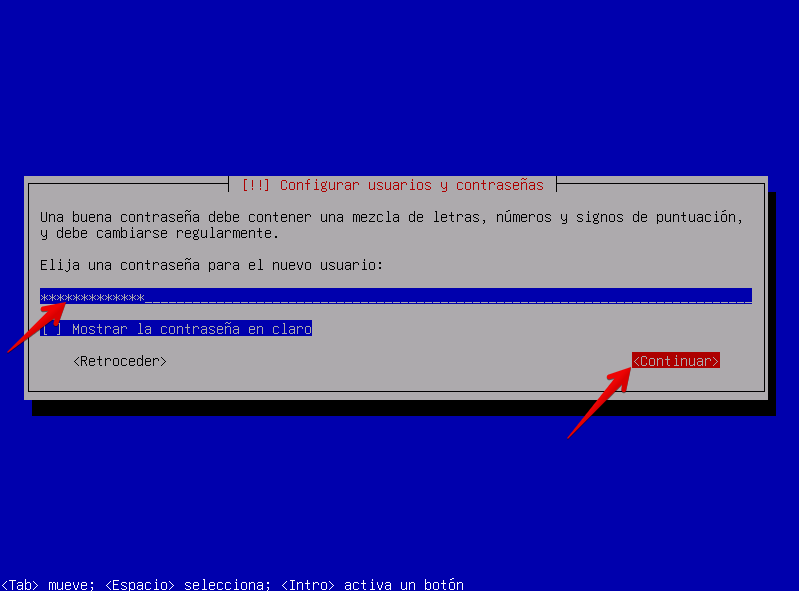
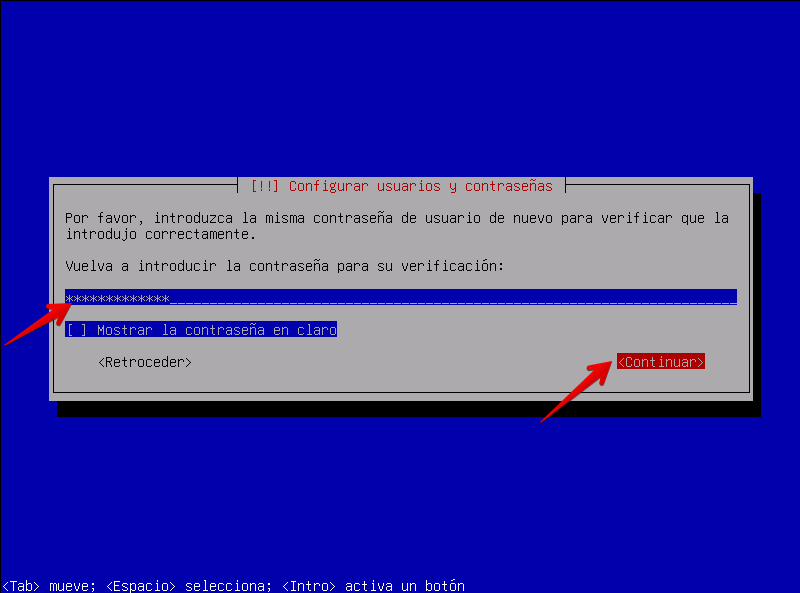
5. Root account and administrative user
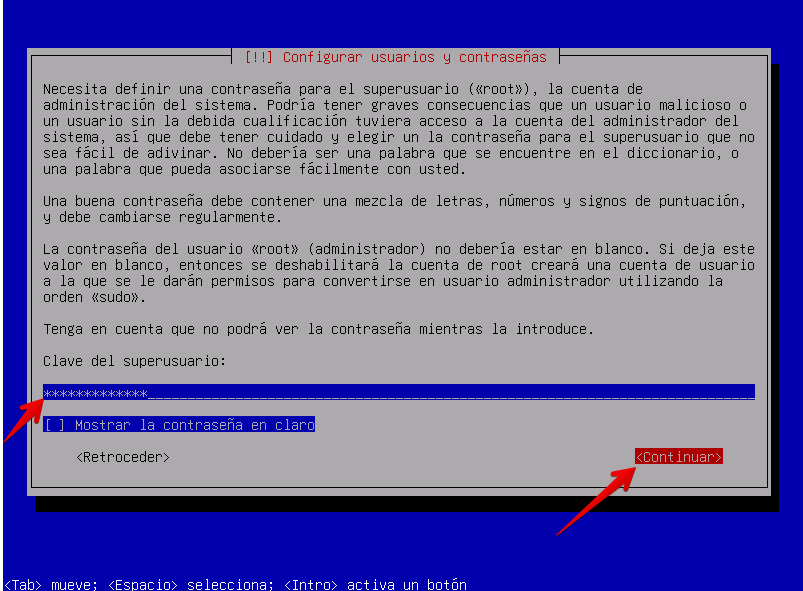
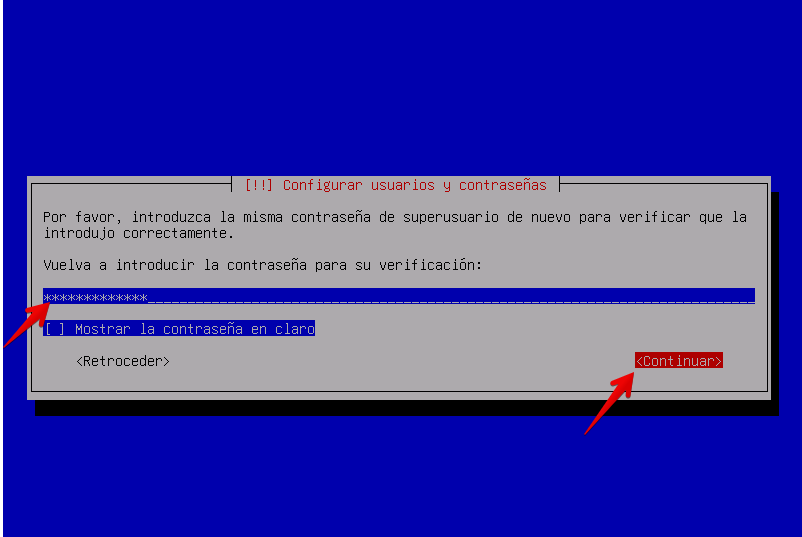
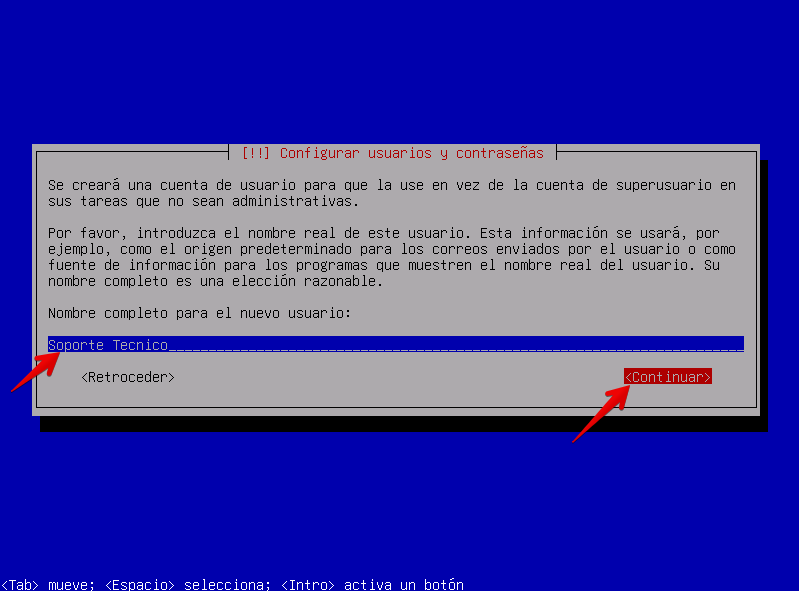
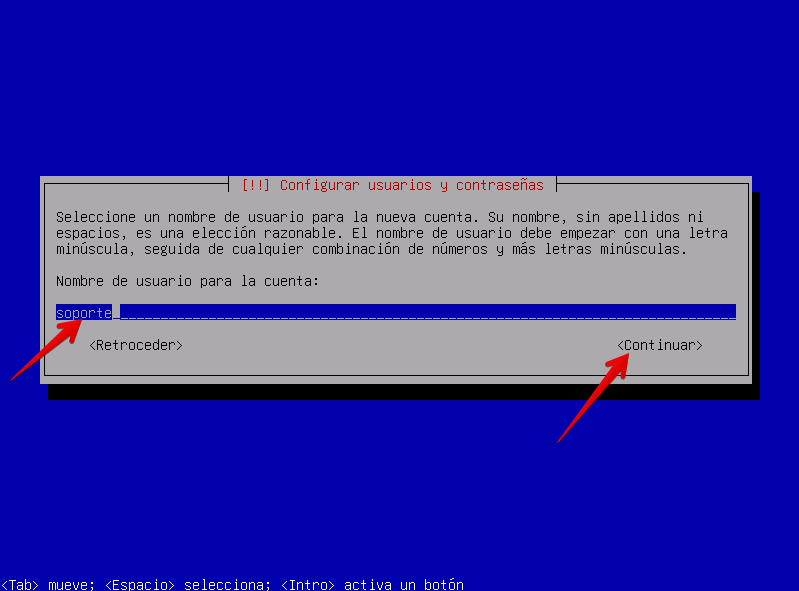
Debian supports two models. If you set a root password, the root account remains enabled. If you leave the root password blank, Debian disables direct root login, installs sudo, and allows the first normal user to perform administrative tasks with sudo.
For many modern server deployments, the second model is preferable because day-to-day work happens under a named account and privileges are elevated only when needed.
6. Time zone
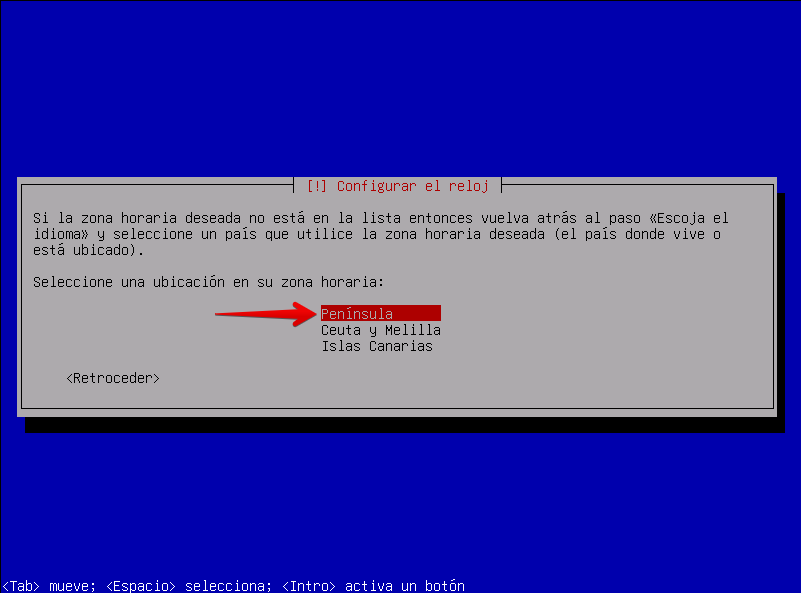
Accurate time is essential on servers because it affects logs, TLS, Kerberos, scheduled jobs, and incident correlation.
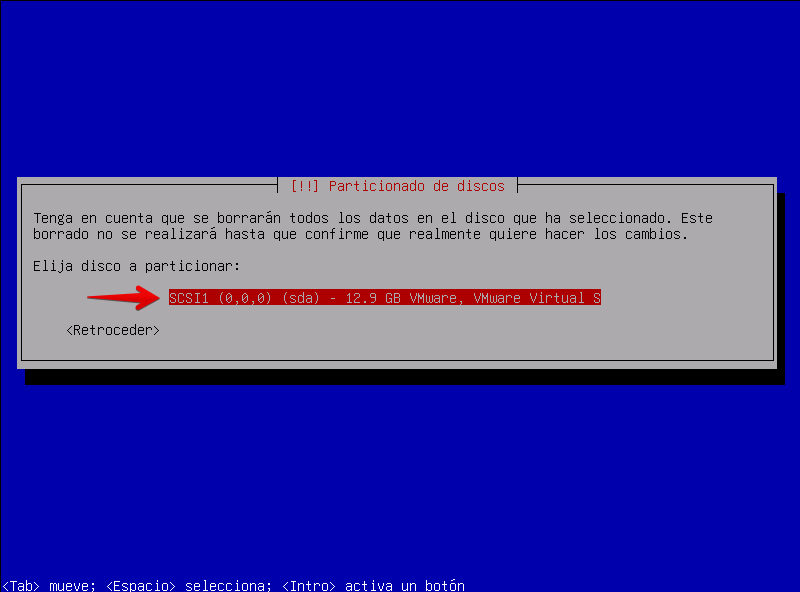
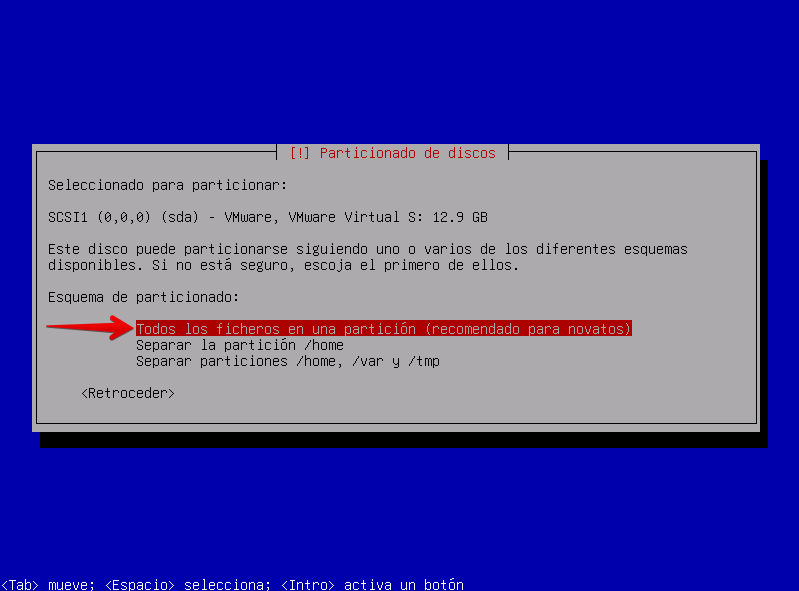
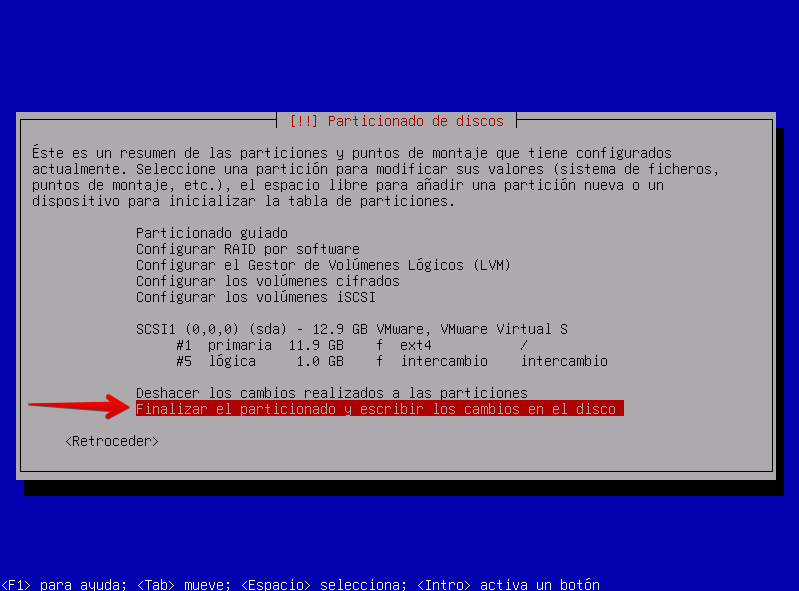
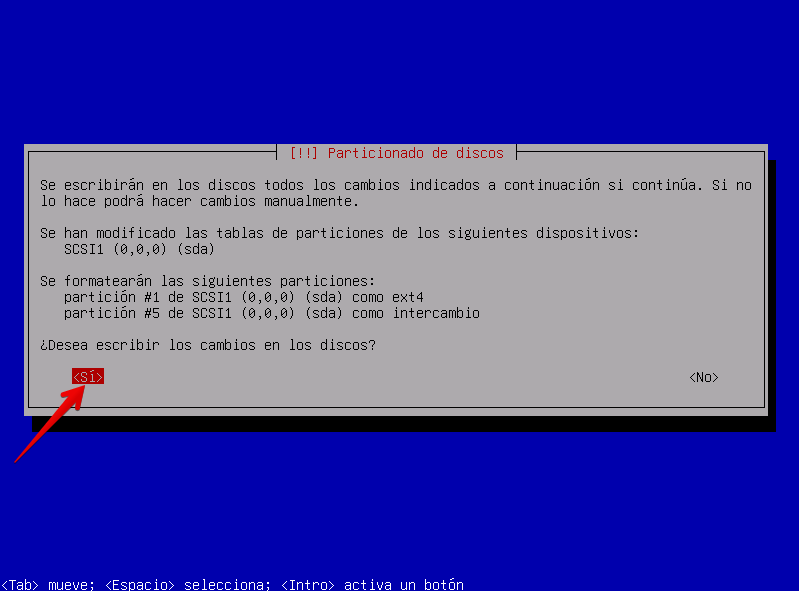
7. Partition the disk
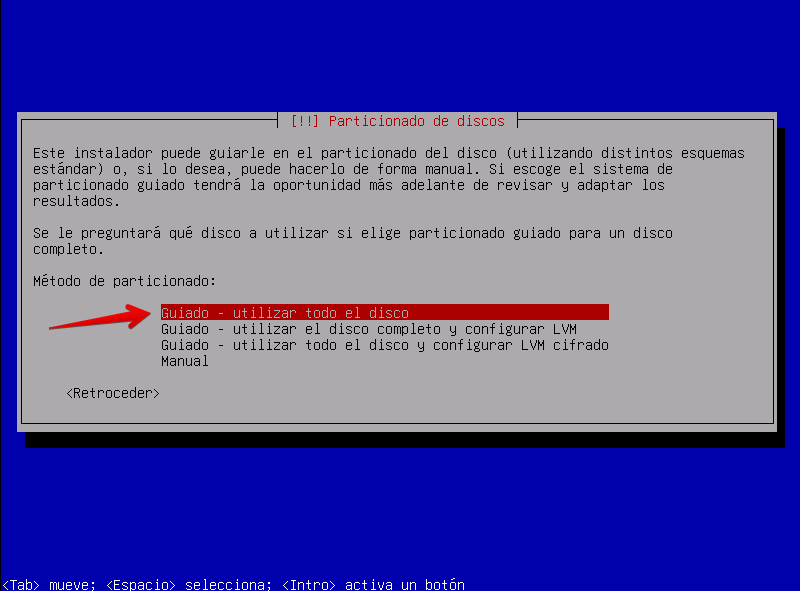
Guided partitioning is reasonable for a VM or simple server. Production systems may instead require LVM, encryption, RAID, separate application data, or dedicated filesystems for logs and databases.
8. Additional media and network mirror
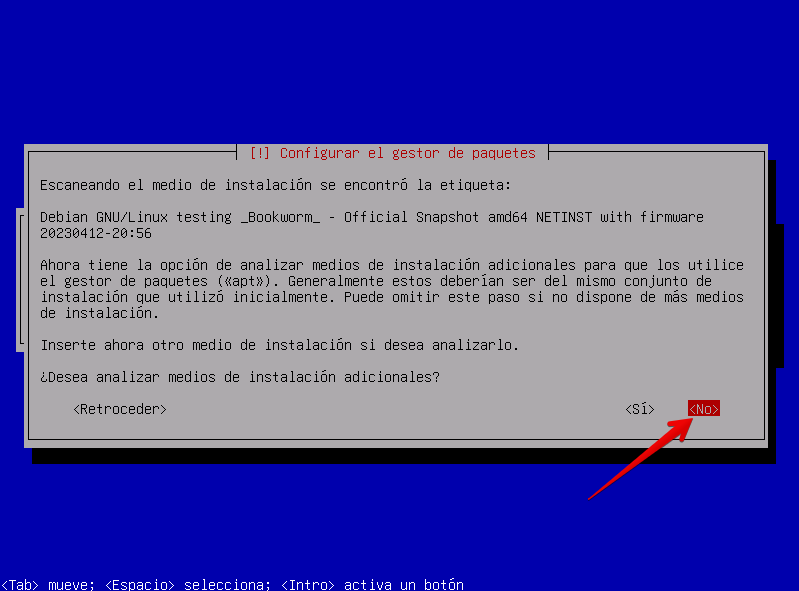
The original walkthrough then continued without a network mirror. That results in a very small installation and requires APT repository setup afterward.
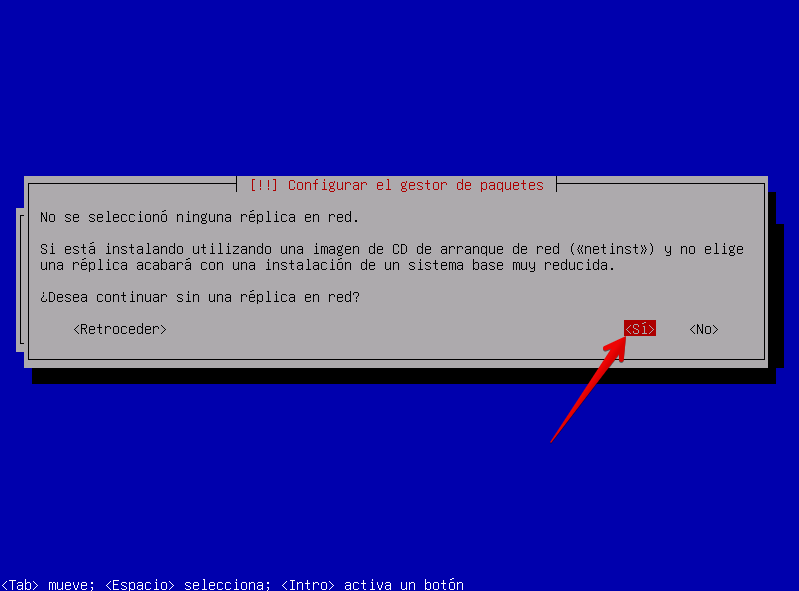
When network connectivity is available, select a Debian mirror. This lets tasksel retrieve services such as OpenSSH and install up-to-date packages during the installation process.
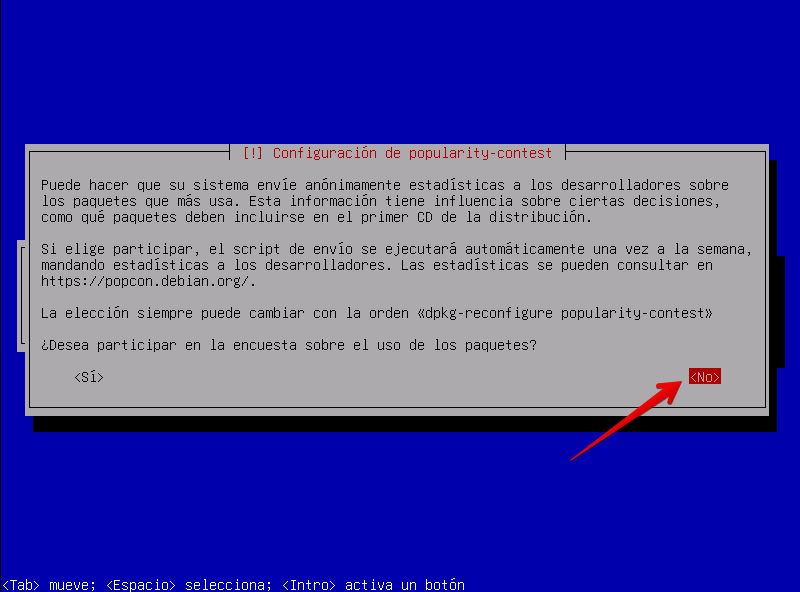
9. Popularity contest and software selection
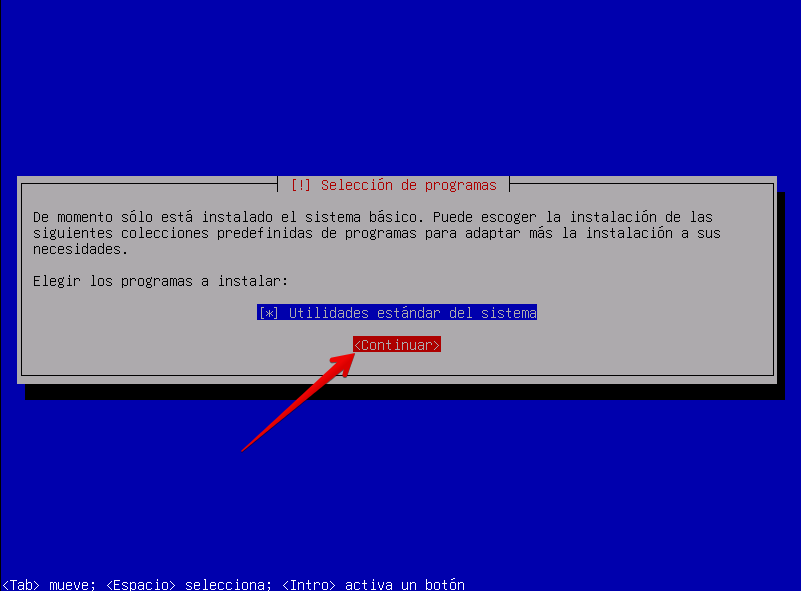
With a mirror configured, you can also select SSH server. Debian’s task installs openssh-server for remote administration.
10. Install GRUB and reboot
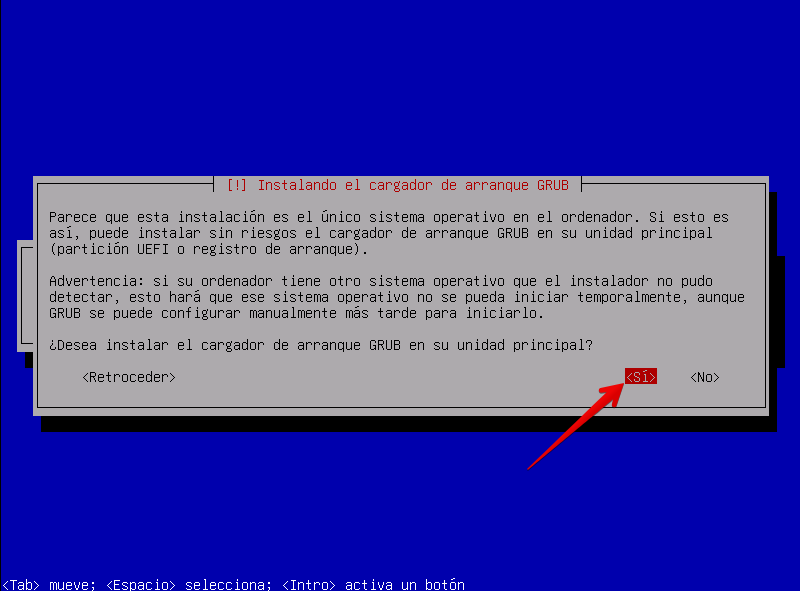
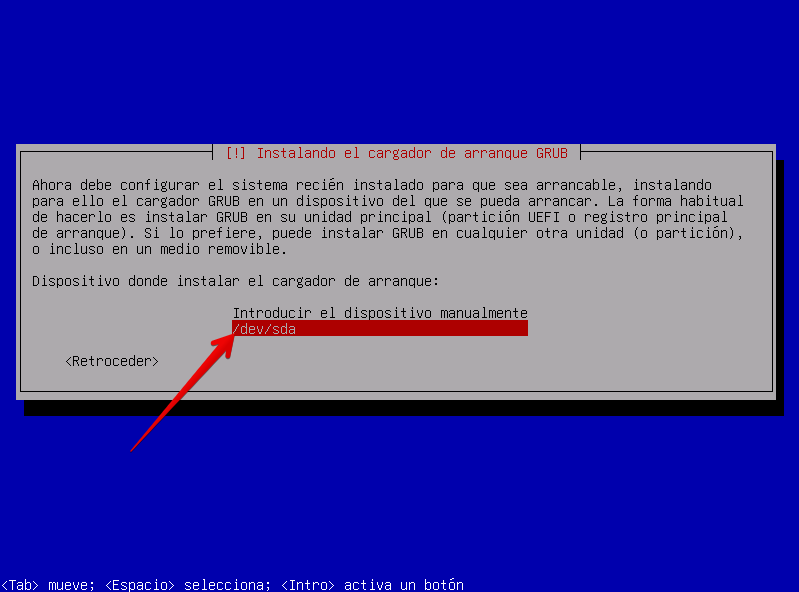
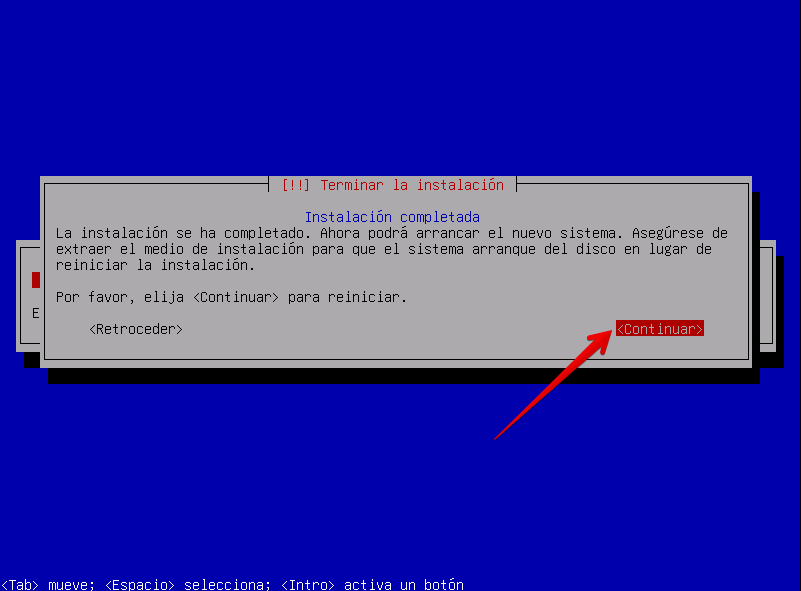
/dev/sda; NVMe and other systems use different device names.UEFI systems can follow a different path because GRUB is installed into the EFI System Partition.
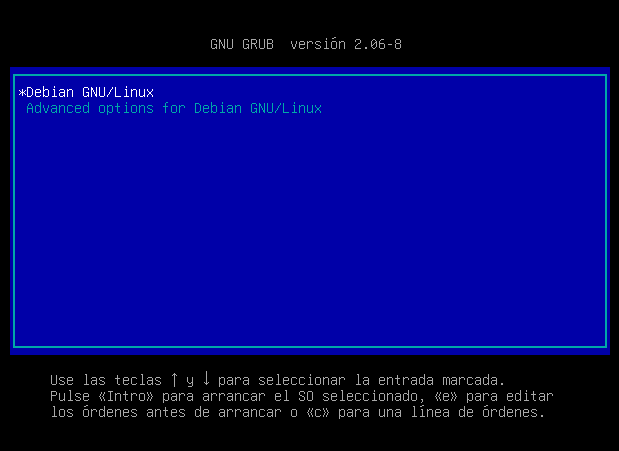
11. Verify the installed release
cat /etc/os-release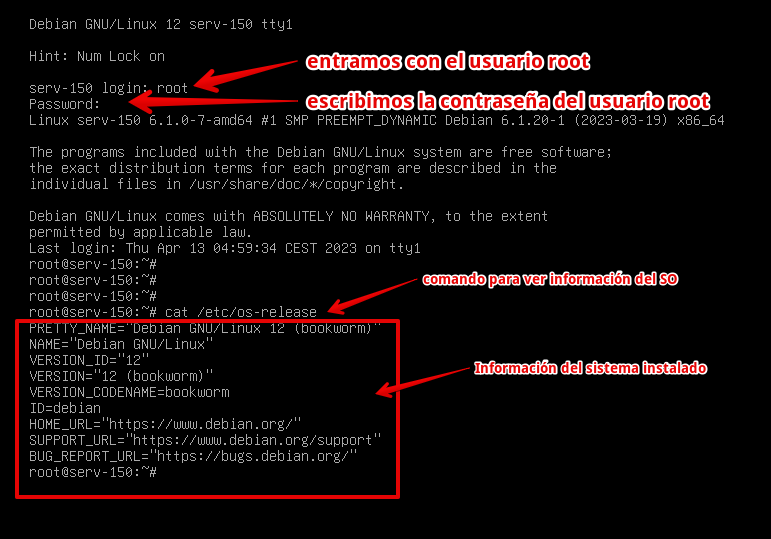
12. Test IP connectivity and DNS
ping -c 4 1.1.1.1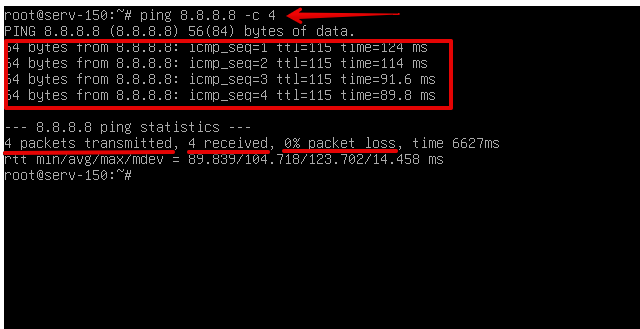
Then test DNS separately:
getent hosts debian.orgBeing able to ping an IP address does not prove that name resolution works.
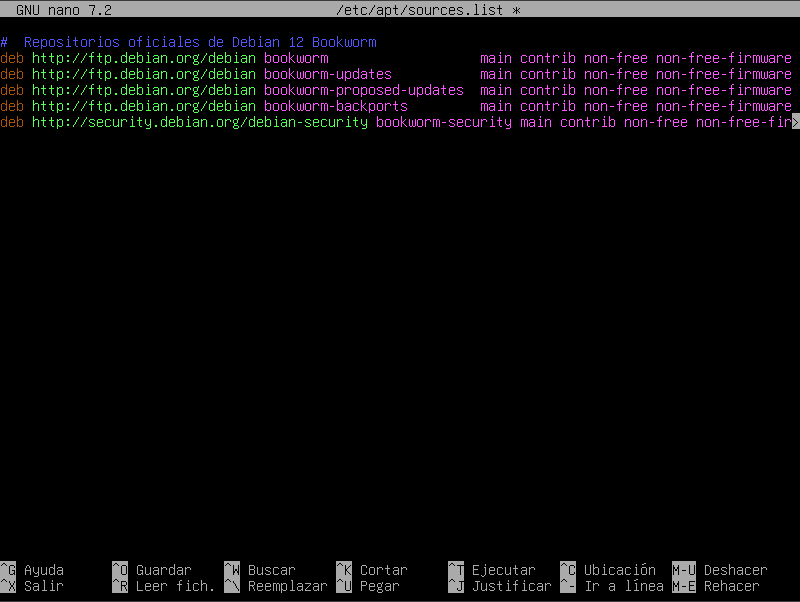
13. Configure Bookworm APT repositories
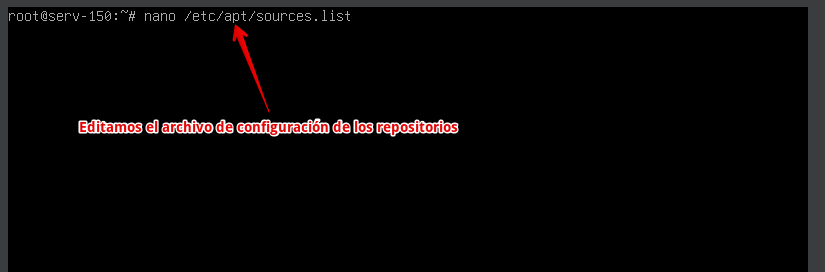
/etc/apt/sources.list manually.On Debian 12, the traditional one-line sources.list format remains supported. If the installer already created correct repository entries, review them rather than deleting the file blindly.
A simple configuration using Debian’s CDN is:
deb https://deb.debian.org/debian bookworm main non-free-firmware
deb https://deb.debian.org/debian bookworm-updates main non-free-firmware
deb https://security.debian.org/debian-security bookworm-security main non-free-firmware
Add contrib or non-free only when you actually require software from those components.
sudo apt update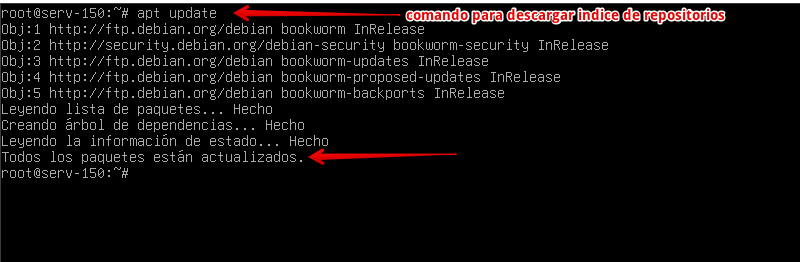
14. Fully update the server
This is particularly important in 2026 because an installation image can contain packages older than the current Bookworm LTS updates.
sudo apt update
sudo apt full-upgrade
Reboot when a kernel update requires it and verify the active kernel with uname -r.
15. Install OpenSSH and basic administration tools
sudo apt install openssh-server mc byobu wget curl htop btop iotop nload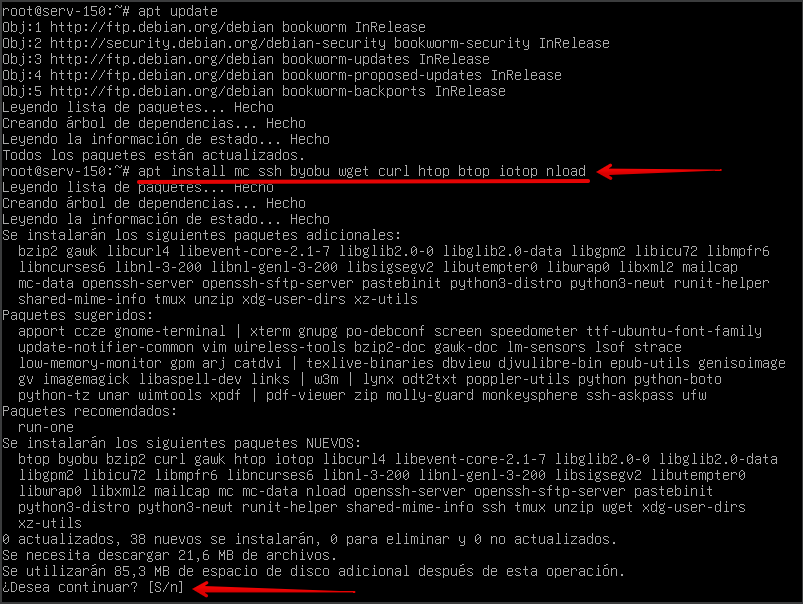
sudo systemctl enable --now ssh
sudo systemctl status ssh
For real servers, prefer SSH keys and a normal administrative user over routine direct root logins. Do not expose SSH publicly without an appropriate firewall, VPN, access-control policy, and patching strategy.
16. Monitor resources with htop
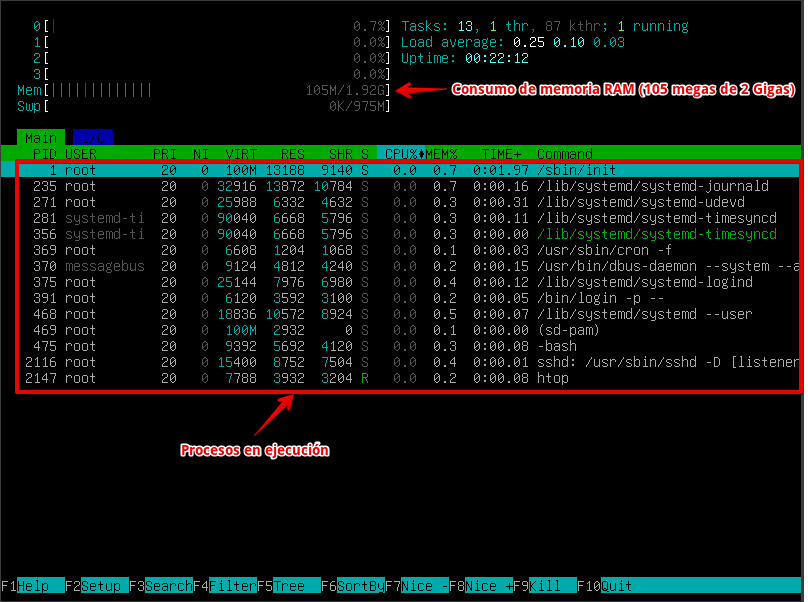
htop provides a convenient interactive view of processes, CPU, and memory use.For deeper server troubleshooting, also become familiar with free, vmstat, iostat, ss, and journalctl.
17. Basic server hardening after installation
A reasonable baseline is to fully patch the system, install only necessary services, use individual administrative accounts, configure SSH keys, review SSH settings, apply an appropriate firewall policy, maintain accurate time, configure backups, monitor disk usage and logs, and document the server’s addressing and services.
Debian starts from a comparatively clean base; hardening should then reflect the server’s actual role rather than a generic checklist copied to every host.
Debian 12 LTS in 2026
Bookworm is no longer in its regular support phase. The Debian LTS team took over security maintenance in July 2026 and plans to continue through June 2028 for the supported architectures.
That does not require an immediate reinstall of every working Bookworm server. A stable, fully updated system with certified dependencies can remain on Debian 12 during LTS, but planning the migration to Debian 13 is wise before software vendors and third-party repositories stop supporting Bookworm.
Upgrading to Debian 13 is different from installing Debian 13
This page will remain a Debian 12 guide. An in-place upgrade to Debian 13 should follow Debian’s official release notes: back up the system, remove obsolete packages, ensure sufficient free space, review third-party repositories, and follow the supported repository transition.
Do not simply replace bookworm with trixie everywhere and run an upgrade without reading the migration documentation first.
Related guides
- Introduction to GNU/Linux
- Debian 12 Bookworm + KDE graphical installation
- Bootable USB creation tools