When people start programming, they usually worry first about choosing the right language. The next question comes quickly: what should you use to write the code? You can work with anything from a very simple text editor to a full integrated development environment. Today there are many useful options between those two extremes.
The choice matters because a good development tool can help you navigate a project, detect mistakes, run tests, debug code, work with Git, and automate repetitive tasks. But one popular idea should be discarded immediately: using a minimalist editor does not make you a better programmer, and using an IDE does not make you less skilled. Professionals use both depending on the job.
This guide explains the difference between a text editor, a code editor, and an IDE, why those boundaries have become less rigid, and how to choose a tool that fits your language and project.
Software projects contain more than source code
A modern software project may contain many kinds of files. Some are executable programs; others describe interfaces, data, configuration, queries, automation, or infrastructure. Common examples include:
- Programming languages: Assembly, C, C++, C#, Pascal, Java, Kotlin, Python, PHP, JavaScript, TypeScript, Go, Rust, Ruby, Perl, Lua, and many others.
- Markup languages: HTML, XML, and related formats.
- Style sheets: CSS.
- Data and configuration formats: JSON, YAML, TOML, XML, INI, and others.
- Query languages: especially SQL and the dialects used by different database systems.
- Scripts and shells: Bash, PowerShell, Batch, Zsh, and others.
- Build, dependency, and infrastructure files: Makefiles, CMake files, Dockerfiles, CI/CD definitions, and package-manager configuration.
That is why a modern development tool needs to do more than color reserved words. Real projects frequently combine several languages and formats at the same time.
Text editor, code editor, and IDE are not exactly the same thing
Text editor
A text editor creates and modifies plain-text files. It can certainly be used to write code, but it usually has little or no understanding of the programming language or project structure. Simple editors are useful for quick changes, configuration files, or environments with very limited resources.
Code editor
A code editor adds features aimed specifically at programming: syntax highlighting, advanced search, multi-cursor editing, navigation, snippets, terminal integration, and depending on the product, support for code completion, refactoring, debugging, testing, and version control.
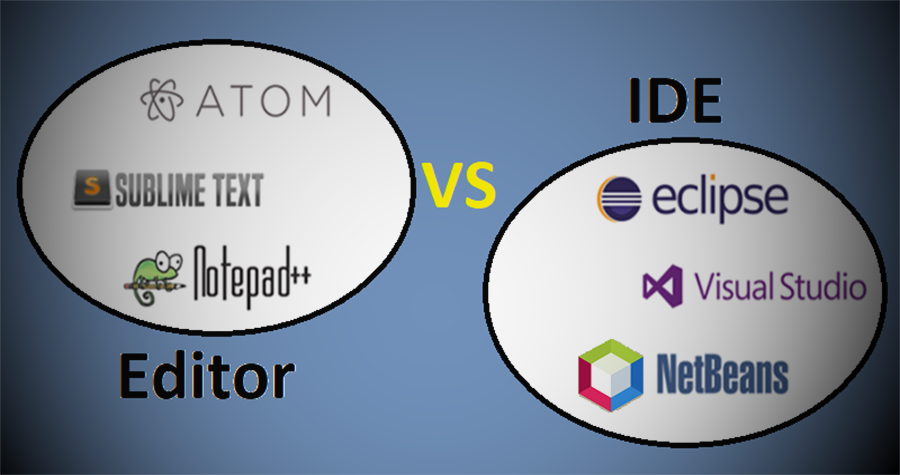
The word “editor” no longer means a minimal tool. Visual Studio Code, for example, is officially described as a code editor, yet it includes a terminal, Git support, running, debugging, testing, and an extension model for adding languages, frameworks, and external services. It is a good example of why the traditional editor-versus-IDE boundary has become much less rigid.
IDE: Integrated Development Environment
An IDE brings a large part of the development workflow into one application. It usually understands the language and project model more deeply and provides many capabilities out of the box rather than asking you to assemble them from separate extensions.
Visual Studio, for example, combines code editing with compilers, designers, code completion, source control, extensions, and debugging tools. IntelliJ IDEA is explicitly positioned as a professional Java and Kotlin IDE with static analysis, refactoring, debugging, build-tool integration, and deep project awareness.
What does an IDE usually provide?
- Project model: knowledge of modules, dependencies, packages, build targets, and configurations.
- Semantic completion and navigation: understanding symbols, types, methods, references, and dependencies rather than treating everything as text.
- Static analysis: detection of errors, suspicious code, dead code, and type problems before execution.
- Refactoring: renaming symbols, moving classes or methods, extracting functions, and changing structures while keeping references consistent.
- Build and execution: integration with compilers, interpreters, runtimes, and build systems.
- Debugging: breakpoints, stepping, variable inspection, call stacks, and expression evaluation.
- Testing: running unit, integration, and other automated test suites from the interface.
- Version control: Git and sometimes other systems, including diffs, commits, branches, merge conflicts, and history.
- Dependency management: integration with Maven, Gradle, NuGet, Composer, npm, Cargo, and similar tools depending on the ecosystem.
- Integrated terminal: access to shells and command-line tools without leaving the application.
- Profiling and diagnostics: in some IDEs, performance, memory, coverage, and runtime analysis tools.
- Database, service, and deployment tools: depending on the product and edition.
- Extensions and plugins: full IDEs can still be extended.
The main advantage is not that an IDE “writes the program for you.” It is that the IDE maintains a large amount of context about the project and can connect several parts of the development lifecycle.
Code editors worth knowing
Visual Studio Code
Visual Studio Code (VS Code) is one of the clearest examples of a modern extensible editor. It runs on Windows, Linux, and macOS and can be used for anything from changing a single file to working with a large project. Its official documentation covers intelligent editing, terminal access, Git, debugging, testing, remote development, and extensions.
With the right language extensions, VS Code can provide an IDE-like workflow for Python, C/C++, JavaScript/TypeScript, PHP, Go, Rust, and many other ecosystems. The tradeoff is that part of the experience depends on configuring extensions, runtimes, compilers, and external tools correctly.
Sublime Text
Sublime Text remains a fast and flexible code editor, especially valued for responsive editing, search, and navigation. It can be extended through packages but remains closer to the editor side of the spectrum.
Vim and Neovim
Vim is a highly configurable text editor that becomes extremely efficient once its modal editing model is learned. The Vim project itself describes a rich scripting and plugin ecosystem that can extend it toward IDE-like behavior.
Neovim builds on the Vim tradition with a modern plugin ecosystem, language-server integration, and Lua-based configuration. Both can be particularly useful for developers who spend a lot of time in terminals or on remote servers, although their learning curve is steeper than most graphical editors.
Notepad++
Notepad++ is a lightweight Windows editor that remains useful for source code, scripts, configuration files, and large text files when opening a full development environment would be unnecessary.
Current IDEs and where they fit
- Visual Studio: a full-featured IDE for .NET and C++ development on Windows, with compilers, debuggers, designers, testing, profiling, and source-control integration.
- IntelliJ IDEA: especially strong for Java and Kotlin, with deep code analysis, refactoring, debugging, and Maven/Gradle integration.
- PyCharm: JetBrains’ IDE focused on Python.
- PhpStorm: an IDE for PHP and web development with code analysis, refactoring, Xdebug, testing, database tools, Composer, framework support, and WordPress support.
- WebStorm: focused on JavaScript and TypeScript ecosystems.
- CLion: aimed at C, C++, and native-development workflows.
- Rider: JetBrains’ cross-platform IDE for .NET.
- Android Studio: the official Android development environment built on the IntelliJ platform.
- Eclipse IDE: still an important platform, particularly for Java. Current packages include Git, Maven, and Gradle integration and editions for enterprise and web development.
- Apache NetBeans: an open-source IDE with a long history in Java and support for several project types.
- RAD Studio: Embarcadero’s environment combining Delphi and C++Builder, especially relevant for native and cross-platform development with Delphi/Object Pascal and C++.
This is not a ranking. A tool can be excellent for one ecosystem and inconvenient for another.
So, is VS Code an IDE?
Microsoft officially calls it a code editor, not the Visual Studio IDE. In practice, however, the answer depends on configuration. With language extensions, debuggers, test adapters, Git, terminals, containers, and remote-development support, VS Code can cover much of the workflow traditionally associated with an IDE.
This is a useful way to understand modern development tools: instead of two perfectly separate boxes, think of a spectrum of integration. An editor can become a very complete development workstation, while a full IDE can often be stripped down to a clean, editor-focused view.
What should you choose?
| Situation | A reasonable choice |
|---|---|
| Learning programming from scratch | A well-configured editor or a language-specific IDE. The key is being able to run, debug, and understand the code without fighting the tool. |
| Python | VS Code or PyCharm. |
| Java or Kotlin | IntelliJ IDEA; Eclipse and NetBeans are alternatives. |
| C# / .NET | Visual Studio on Windows or Rider; VS Code can also handle many workflows. |
| C and C++ | Visual Studio, CLion, VS Code, or another environment chosen around your compiler and platform. |
| Delphi / Object Pascal | RAD Studio/Delphi is the natural environment because of its compiler, designers, and platform tooling. |
| PHP | PhpStorm provides deep integration; VS Code is a flexible extension-based alternative. |
| JavaScript / TypeScript | VS Code or WebStorm, among many other choices. |
| Server administration and remote editing | Vim/Neovim can be extremely practical; VS Code also supports remote workflows. |
| Large project with frequent refactoring | An IDE with deep project understanding often provides significant advantages. |
| Quick changes to small files | A lightweight editor can be more convenient than opening a full IDE. |
Does an IDE always use far more resources?
In general, an IDE that indexes a whole project, maintains semantic analysis, symbol databases, debuggers, and integrated tooling needs more memory and CPU than a basic editor. But the comparison is no longer simple: an editor loaded with dozens of extensions can also consume substantial resources.
Do not choose solely by looking at process memory. What matters is how much time the tool saves and whether it remains responsive on your machine and project.
What about AI-assisted development tools?
Modern editors and IDEs increasingly include AI-assisted completion, contextual chat, code explanation, test generation, search, and agents that can modify multiple files.
These features can be useful, but they do not replace the fundamentals. Generated code still needs review, compilation or execution, testing, and the same security and quality checks as any other change. It is also worth reviewing what project data each tool sends to external services and what privacy policies apply.
The myth that “experts only use editors”
An experienced developer can be extremely productive with Vim, Neovim, or a heavily customized VS Code setup. Another developer may take full advantage of IntelliJ IDEA, Visual Studio, or PhpStorm. None of these choices proves a higher level of technical ability by itself.
Experience shows in knowing which tool helps most in a particular situation and in knowing that tool well enough that it does not get in the way. It is also common to combine several tools: an IDE for the main project, a lightweight editor for quick changes, and terminal tools for automation.
Our recommendation
If you are just starting, do not turn editor selection into a bigger problem than learning to program. Pick a tool that lets you run and debug the language you are studying, learn its basic shortcuts and workflow, and spend most of your effort on programming fundamentals.
As projects grow, ask whether you need stronger navigation, refactoring, testing, profiling, database tools, visual designers, or ecosystem-specific integration. At that point a specialized IDE may save significant time. If you prefer a customized environment and work across many languages, an extensible editor may provide more flexibility.
The right tool is the one that reduces friction without hiding how your project works.
If you are still deciding what language to learn, continue with Programming languages, their types, and classifications.